


NbC: Samsung N120 Review
May 18, 2009 at 9:32 am
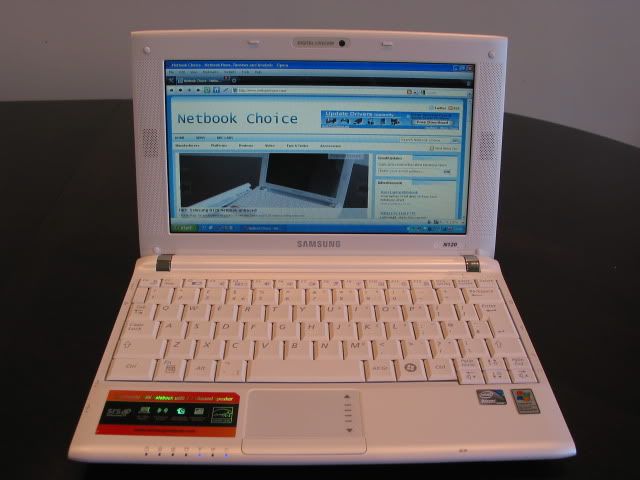
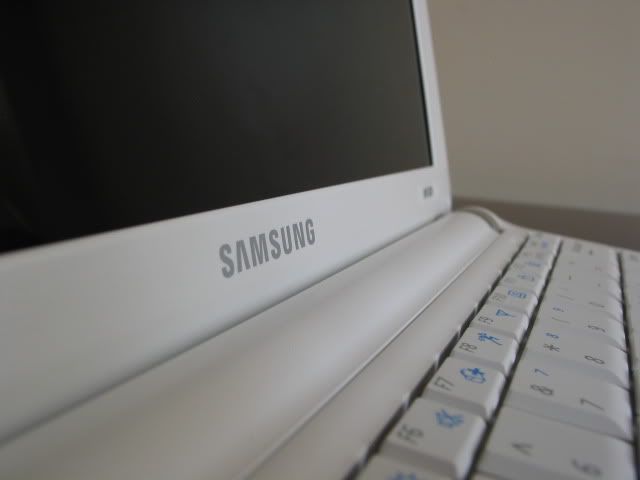
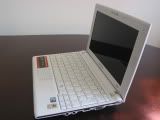 In our view, two of the most important considerations when buying a netbook are the keyboard and battery life. Samsung has ticked both of these boxes with the N120; it provides one of the least compromised experiences yet found in a 10-inch netbook. The wonderful full-sized keyboard offers good tactile feedback and keys that are located in the right places. Accommodating this keyboard leads to a big (ugly) bezel around the screen, but Samsung has made the most of this by placing speakers on either side of the screen. The sound quality is some of the best seen, although that does not mean it is the loudest.
Many netbook manufacturers are now looking at battery life to provide the ‘all day computing’ experience that many consumers crave. The Samsung N120 delivers on this front and should easily last 7 -8 hours whilst web browsing or using Office. On our tests, it didn’t last quite as long as the Asus Eee PC 1000HE, but there wasn’t much in it. However, how does the Samsung N120 fare as an overall package? Read on for our detailed review where we run some comprehensive performance and battery tests as well as address some issues that are worth pointing out to potential buyers.
Positives:
– Full-width keyboard is a first for 10-inch netbooks
– Very good battery life that should last 7-8 hours of typical netbook use
– Sound imaging enhances music & movie playback
– Subwoofer provides mid-range sound boost
– Crisp, bright and vibrant display
– Matte exterior means no risk of fingerprint marks on lid
– Easy access to RAM
– Reasonably lightweight at 1.3kg, considering the inclusion of a 6-cell battery
Negatives:
– Glossy display, not as bad as others but still difficult to use when outdoors
– HDD clicking noise can be loud & distracting
– Touchpad is not the biggest
– No draft N wireless
– Large screen bezel may annoy some
– No easy access for HDD, but can be done with patience
Samsung N120 Technical Specifications:
- Operating System: Windows XP Home SP3
- CPU: Intel Atom Processor N270 (1.6 GHz)
533MHz FSB with 512KB Cache
Chipset: Intel 945GSE + ICH7M - Graphics: Intel Graphics Media Accelerator 950
128 MB shared memory - System Memory: 1 GB DDR2 800MHz (2GB Maximum)
- Display: 10.1-inch WSVGA 1024 x 600 LED Backlit
- Storage Hard Drive: 160 GB, 2.5-inch 5400 RPM
- Connectivity: Ethernet LAN 10 / 100 BaseTX
Wireless LAN 802.11 b/g
Bluetooth 2.0 + EDR - Ports: VGA
Mic-in Yes
3 x USB 2.0 (2 chargeable USB ports)
Multi Card Slot 3 in 1 (SD, SDHC, MMC)
RJ45 (LAN) Yes - Other Features:
Multimedia Speakers 3W (1.5W x 2)
Integrated Camera: 1.3 megapixel
Input Keyboard Type: 82 keys
Touch Pad
Security Kensington Key Lock Capable - Power: AC Adapter 40 W
Battery: 6 cell lithium ion (5900mAh) - Dimensions & Weight:
Width 272 mm (10.71-inches)
Depth 188.5 mm (7.4-inches)
Height 29.8mm (1.17-inches)
Weight: 1.28kg (2.8lbs) - Price (at time of publication): £358.97 (Amazon.co.uk
), £358.97 (Laptops Direct), £379.99 (Play.com)
US Prices: $459.99 (Newegg), $432.99 (Amazon.com
)
Following the huge success of its NC10 netbook, Samsung made the surprising move of announcing three new 10-inch netbooks all in quick succession. Samsung was not looking to dilute its offering though as all three netbooks offer something different. The Samsung N110 is effectively a refresh of the NC10, which improves on its predecessor through an expanded touchpad and a higher capacity 6-cell 5900mAh battery (versus 5200mAh in the NC10) that should give 9.5 hours of continuous use according to Samsung. The Samsung N310 takes a completely different approach, mainly through stylish design cues to target a different audience.
This leaves us with the Samsung N120, which once again, differentiates itself against Samsungs other two netbooks. Even compared to its 10-inch peers outside of Samsung, the N120 is not just another netbook. Yes, if you looked at the technical specifications, that is a conclusion you may draw, however there are a couple of unique points that make it stand out from the crowd.
Probably the most important differentiator is that this is the first 10-inch netbook we have seen that has managed to squeeze a full 12-inch sized keyboard into its chassis. The second is that the Samsung N120 includes a 2.1 SRS sound system, certainly unique when it comes to netbooks. A quoted battery time of 10.5 hours rounds off the Samsung N120 as a compelling proposition.
As we mentioned before, the specifications themselves are nothing to get excited over. There’s nothing here that you haven’t seen before. The Samsung N120 has a 10.1-inch (1024 x 600) LED backlit display. It is powered by your typical 1.6GHz N270 Atom CPU & 945GSE chipset combo and comes with 1GB of memory and a 160GB hard-disk drive. Initially, it was thought that the N120 may be restricted to just 1GB of RAM, however we can confirm that the N120 does support a maximum of 2GB RAM. Indeed, Samsung makes it very easy to change the memory with a dedicated access panel at the bottom of the unit.
We previously covered the unboxing of the Samsung N120 which you can find here. Inside the box you’ll find a soft pouch, power supply, system CD along with various pieces of documentation. The power supply is only marginally bigger than the one seen in the Asus Eee PC 1000HE, however it did feel heavier. For reference purposes, the power brick measures 40m in width, 92mm in height and 27mm in depth.
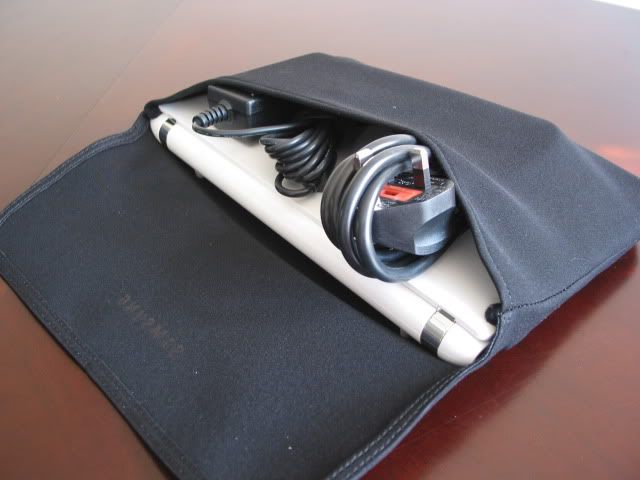
The soft pouch has no zip and just folds over like an envelope. It has a much nicer feel to the one included with the Asus 1000HE. We managed to fit the power supply and plug into the case, alongside the N120, although it was a bit of a squeeze.
Build & Design
The Samsung N120 looks very similar to the NC10, which is no bad thing in our view. The N120 has some understated design cues making it very easy on the eye. Each of the edges are tapered and when the N120 is closed, sit flush together.
Overall build quality is very good with the N120 having a solid feel. This impression is maintained once the netbook is opened with no creaking on the palm rests when applying force. We noticed no rattling of any kind unlike the Asus Eee PC 1000HE, which did rattle mainly caused by the keys on the chiclet keyboard.
However, we did notice some very slight creaking when opening and closing the lid that stemmed from the hinge. It seems that it comes from the plastics rubbing together, although as mentioned before, it has hardly noticeable.
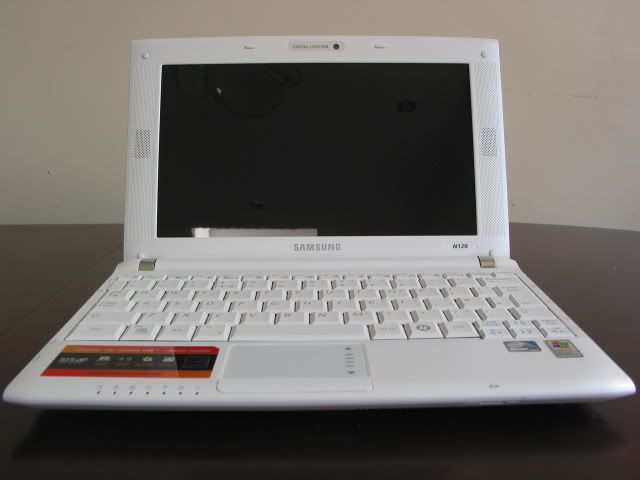
We had a white N120 to test and despite being equipped with a 6-cell battery and subwoofer, the netbook is reasonably slim-lined. The 6-cell battery provides a marginal tilt, although less so than the Asus 1000HE.
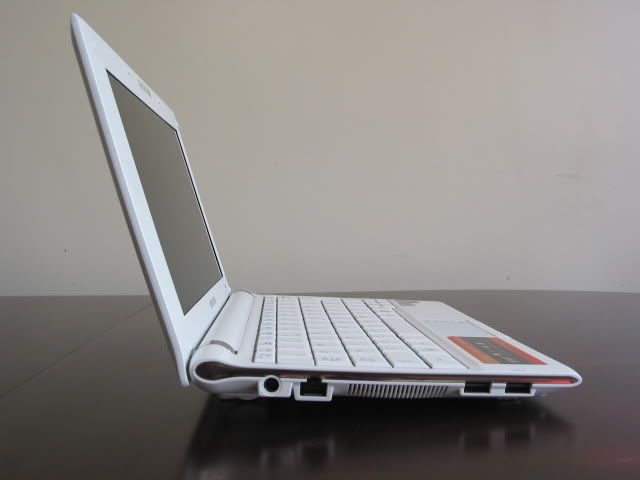
The display does not sit flush with the case as is found in more premium models. To accommodate the large keyboard, the display is surrounded by a large bezel. I imagine Samsung must have toyed with the fact whether they should use the 10-inch screen and speakers combo or instead just use a larger display with thinner bezel. According to our measurements, the chassis would only have to be marginally increased to include an 11.6-inch display. Maybe something Samsung are working on for the future?
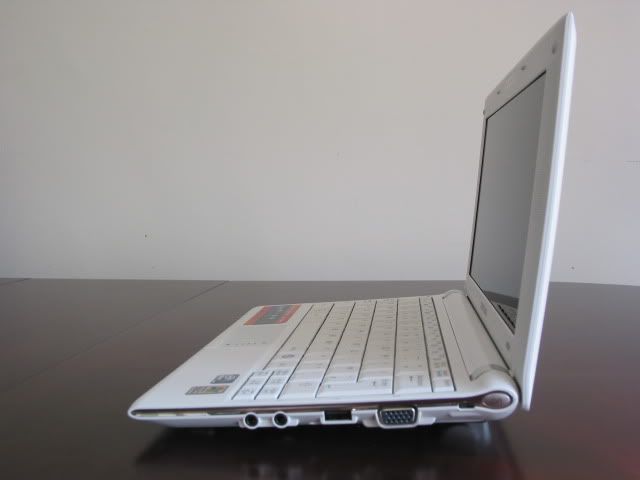
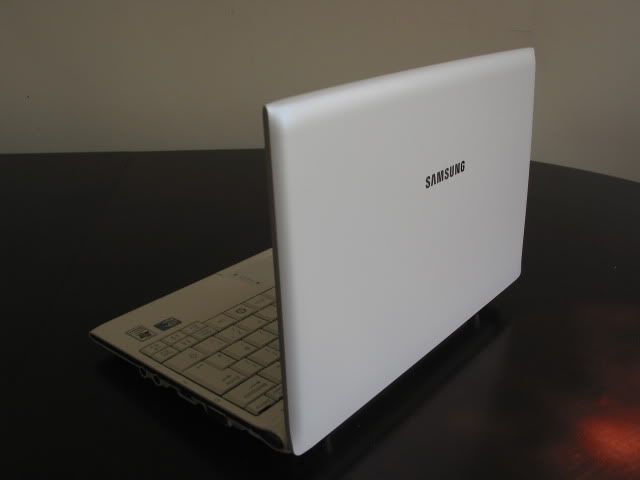
All of the edges on the N120 are tapered which gives it a classy look. An indiscreet Samsung logo sits in the middle of the lid as seen in previous models. The huge embossed logo is left for the N310!
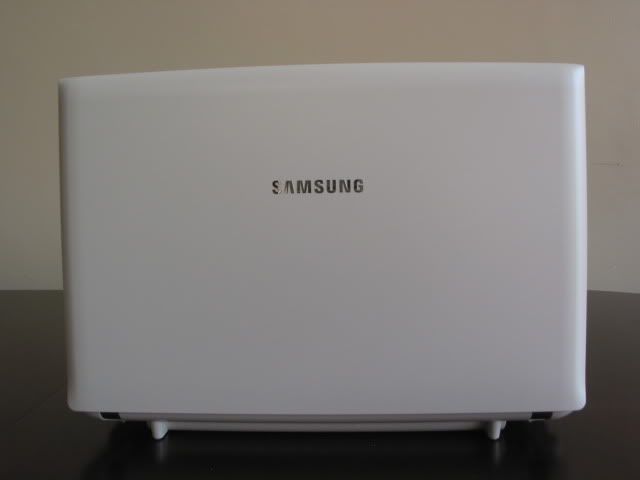
The exterior comes in a satin finish. We really like this as it means an end to worrying about fingerprint smudges. The exterior glistens when exposed to light and the texture has a nice feel to it. Glossy surfaces may look more attractive, but once you’ve wiped your n’th fingerprint smudge off the nice effect wears thin. The matte finish is much more practical and keeps it looking new much better than those with glossy surfaces.
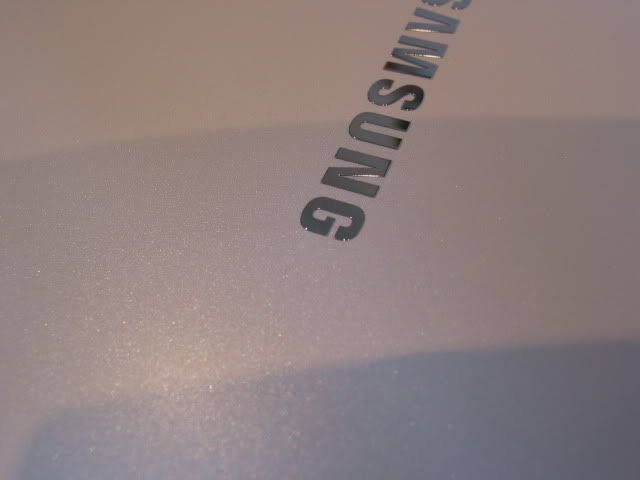
This satin finish is also used on the interior around the palm rests. The keys used on the keyboard are of a slightly different finish and more matte in nature.
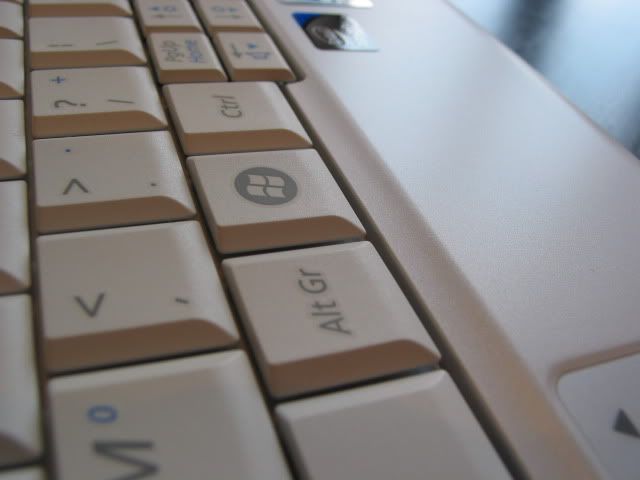
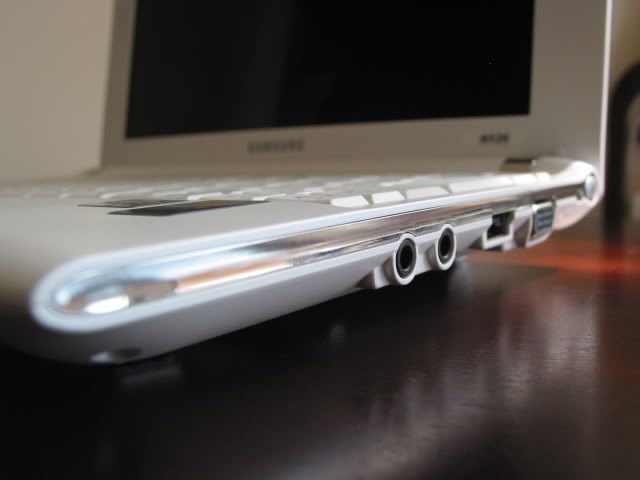
A faux-chrome strip adorns each side of the N120 which is a nice touch.
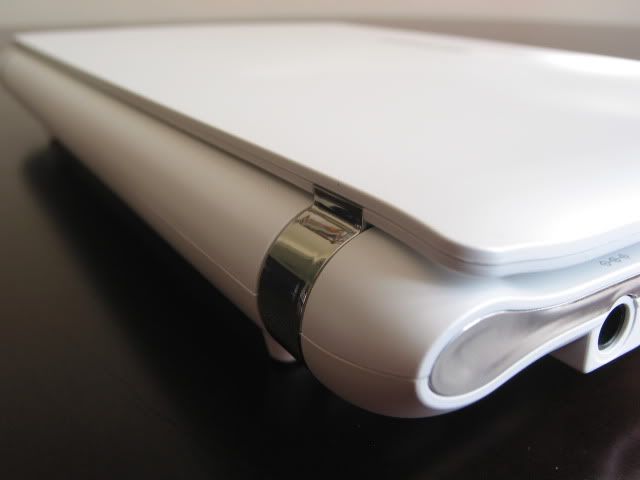
This chrome effect is similarly used on both hinges. I wonder whether the plastics used differ slightly as I did notice some slight creaking when opening and closing the lid.
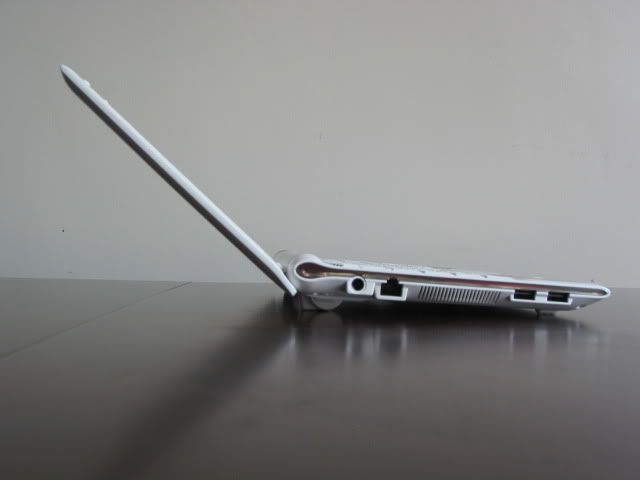
The lid does not go as far back as the Asus Eee PC 1000HE. I didn’t find that I needed to put it down any further than it was restricted by, but I can imagine in some instances, say when travelling, that it may become an issue.
The hinges themselves felt very firm. Two hands are needed to open and close the lid which is the way the hinge should be. If it starts off too loose, then you could face problems later on.
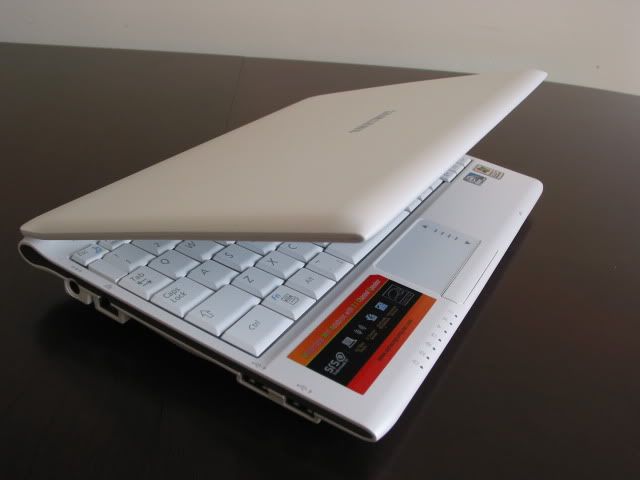
The lid sits flush with the chassis when closed and the small rubber points at the top of the lid ensure that it doesn’t ‘clap’ together whilst in transit.
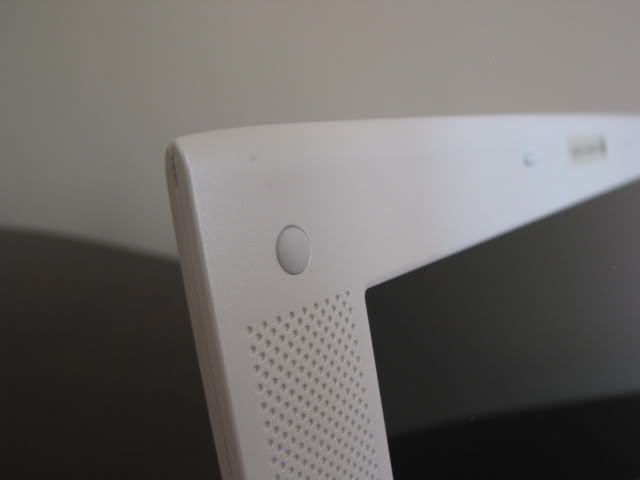
Overall we like the N120 design with the satin finish really winning us over. Even after constant use over the last fortnight, it still looks the same when first opened. That is not something you can say for netbooks with glossy exteriors.
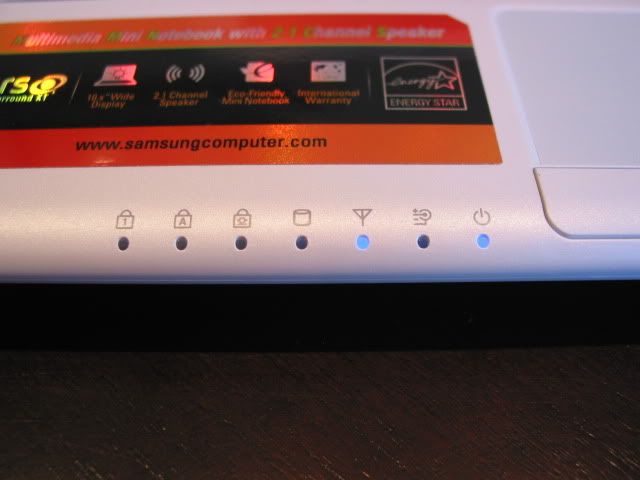
The Samsung N120 has a total of seven status indicators towards the left of the touchpad. Starting from the left, the first indicator is the num lock which sits next to the caps lock and scroll lock lights. The next two are the HDD access and Wi-Fi indicators. You then have the charge status light, next to the power indicator that sits to the far right.
The same satin affect is used on the bezel surrounding the display along with the battery. It ensures the inside of the N120 keeps a similar look and feel throughout.
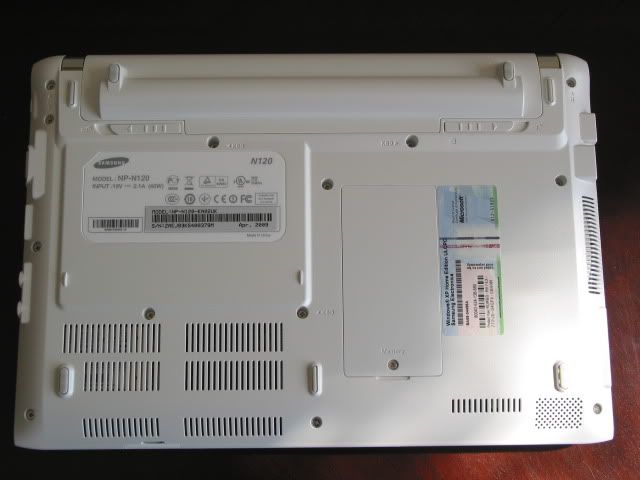
Bottom of unit
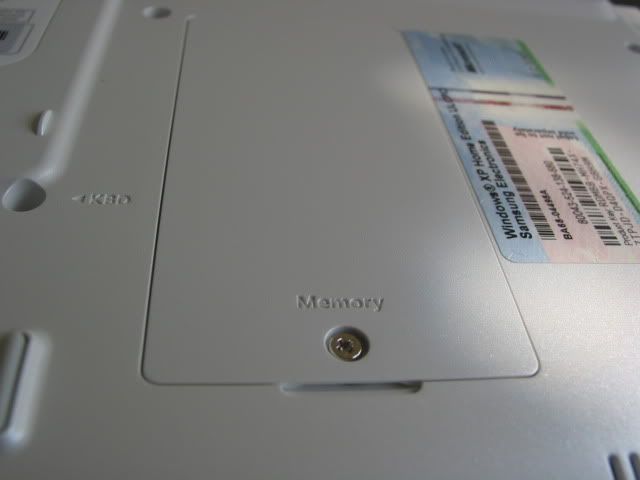
Turning the Samsung N120 upside down, you can see the small access panel in the middle of the unit which houses the memory module. There is only one memory slot here that can be swapped out for a maximum of 2GB of RAM. Trying to upgrade your hard drive appears to be trickier. There is no direct access panel, so we believe that the whole of the bottom needs to be removed to swap out the HDD (much like the Samsung NC10). Whilst this can be done, with patience, we would have preferred easier access much like Samsung has provided with the memory slot.
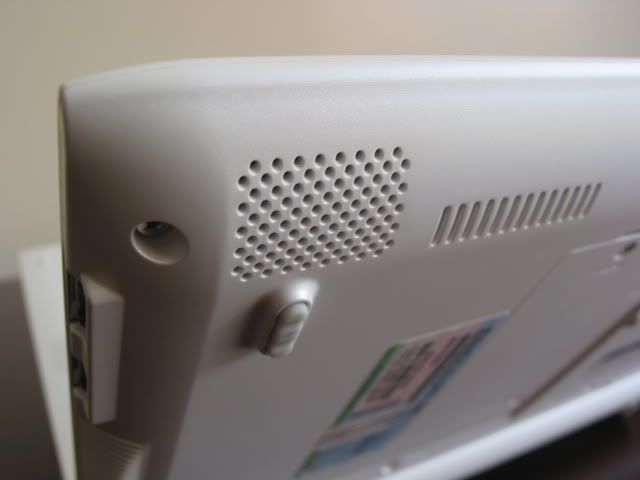
The 6-cell battery doesn’t add too much bulk to the bottom, with two rubber feet sitting on the battery itself. There are a number of fan vents towards the bottom left and the subwoofer vent can be spotted on the bottom right.
Samsung provides very easy access to the memory module. Just one screw needs removing to upgrade your RAM. We just wish that Samsung had made upgrading the hard-drive just as simple.
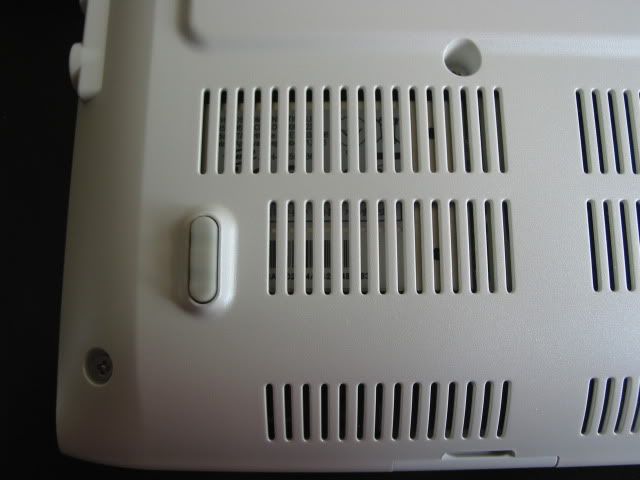
A number of vents sit to the bottom left of the unit. If you look carefully through the vents you can probably make out the Wi-Fi module.
The battery locking mechanism is the same you’ll find in countless other netbooks. We’re pleased to say that the battery slides in and out smoothly with a decent grip to make sure it is locked into place.
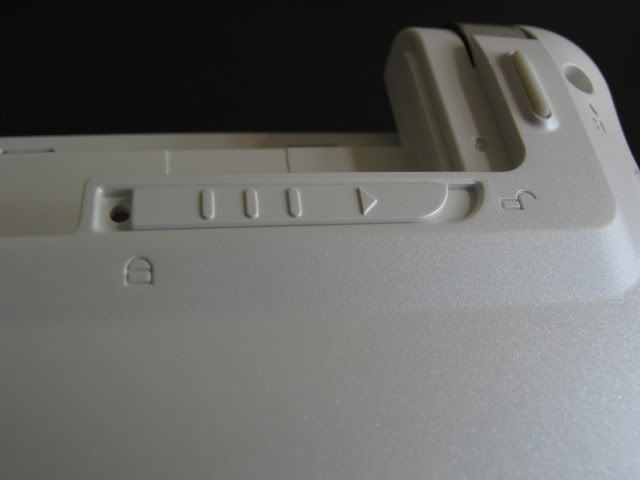
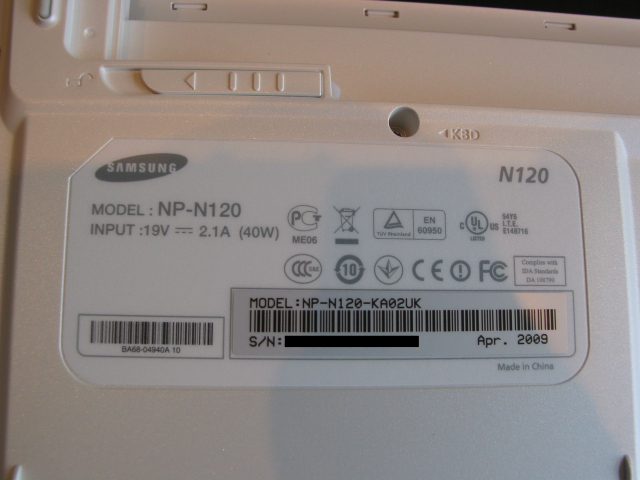
Below this label you will find the hard drive. We do wish that Samsung could have created an access panel for this raised area. In fact, I see no reason why an access panel similar to the one seen in the NC20 wouldn’t have worked.
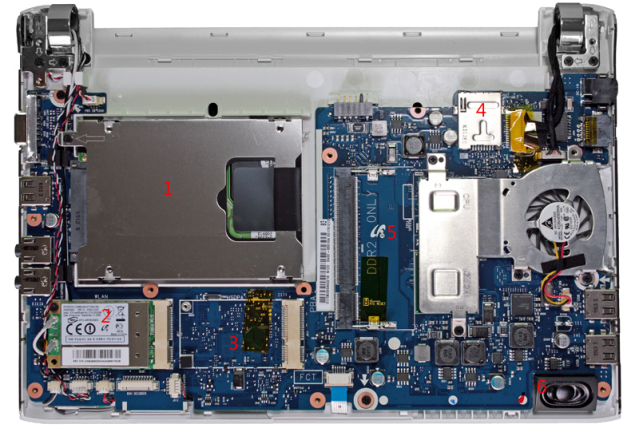
The following image has been provided courtesy of Netbook Italia, who recently dissected the Samsung N120. We have numbered the key components below in red to give you an idea where they can be found under the hood. Key: 1) 2.5-inch SATA HDD, 2) Wi-Fi Module, 3) Empty Mini PCI-E slot, 4) Sim card slot, 5) Memory (RAM) slot, 6) Subwoofer.
The interesting point here is that modders should be able to add 3G functionality to the Samsung N120. Samsung may even launch a 3G-enabled N120 at some point later down the line with full access to the sim card slot.
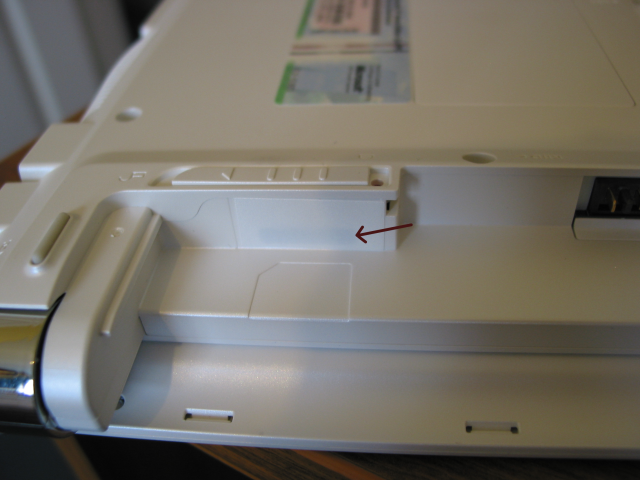
If you look towards the back of the unit, with the battery removed, you will see the sim card slot that is covered up by a thin strip of sticky plastic. We’ve highlighted it in the picture below to make it clear.
Dimensions
To accommodate the full-sized keyboard, the Samsung N120 is 0.44-inches wider than both the NC10 and N110 at 10.71-inches (27.2cm). Despite housing the bigger keyboard, the N120 is still relatively compact and just 0.2-inches wider than the Asus Eee PC 1000HE.
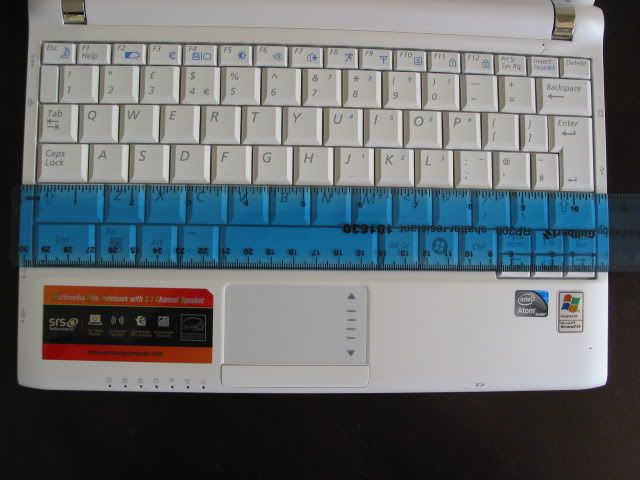
The netbook has a depth of 18.9cm (7.4-inches), which is broadly the same as the NC10/N110 (7.3-inches) and Eee PC 1000HE (7.5-inches) despite having the bigger keyboard.
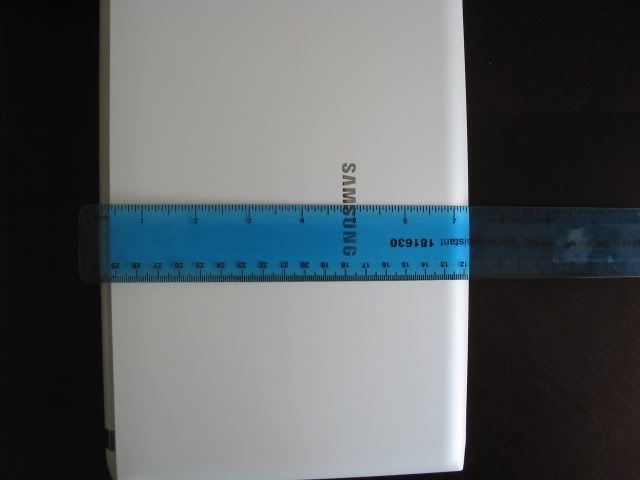
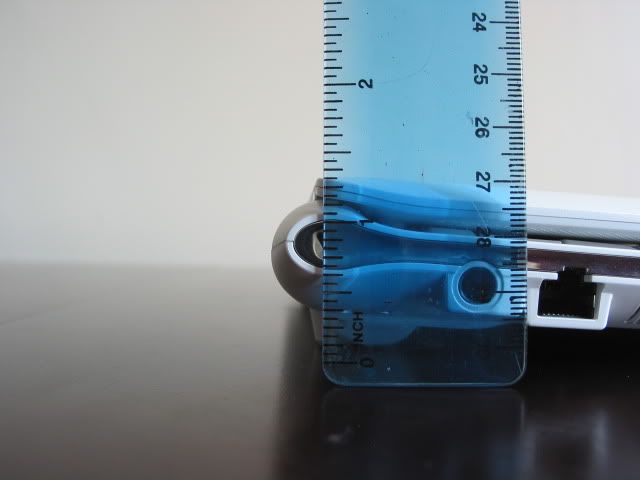
The N120 varies in thickness. At the back where the battery sits, the netbook is at its thickest point at 30mm (1.17-inches). This compares to a thickness of 1.17-inches for the NC10/N110 and is significantly thinner than the Eee PC 1000HE which is 1.5-inches thick
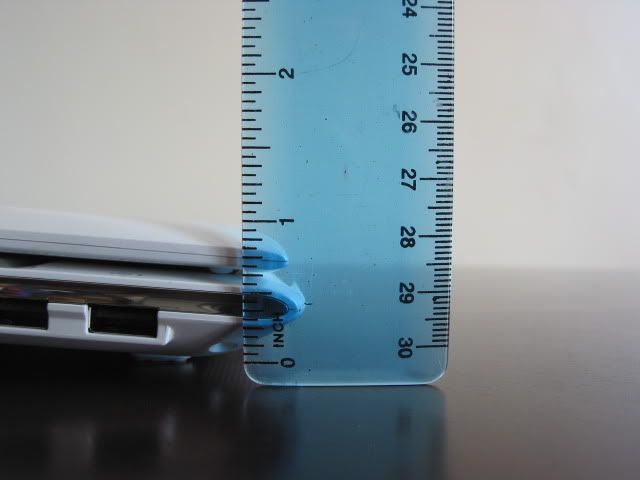
When looking at these pictures, it is worth noting that the ruler does not start from zero. There is a small gap before the gradations start.
At its thinnest point, the N120 measures approximately 0.8-inches (20.3mm), which compares against 1.1-inches (28.5mm) for the Eee PC 1000HE.
Weight
Our last review for the Eee PC 1000HE used some analogue scales, which whilst probably good enough did not give the accuracy we were looking for. We now are using some digital scales to measure the weight down to the last gram.
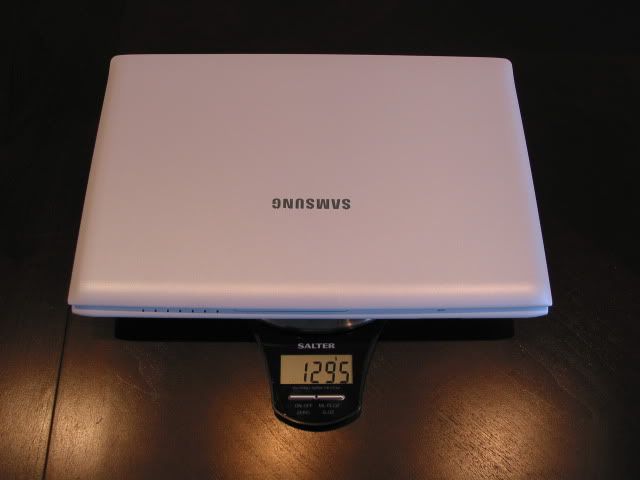
As can be seen by the picture below, the Samsung N120 weighs 1.295kg (2.9lbs) with the 6-cell battery attached. This is quite reasonable considering the inclusion of a 6-cell battery and is a good 150g lighter than the Asus Eee PC 1000HE. The Samsung NC10/N110 both come in at a similar 1.3kg (2.8lbs). [Our measurement of the Samsung N120’s weight was higher than what Samsung claim (1.28kg].
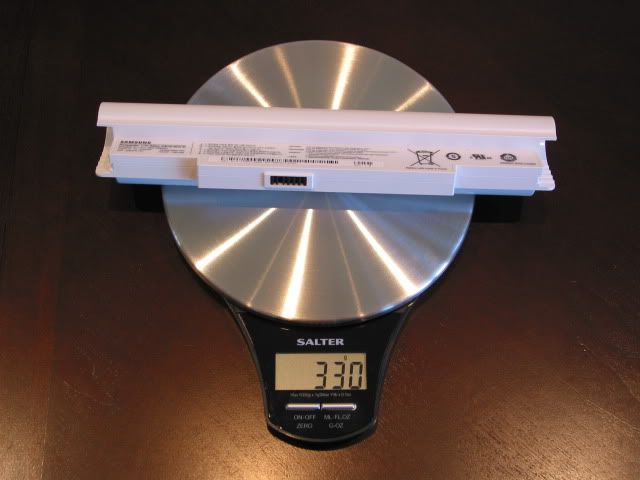
The 6-cell (5900mAh) battery alone contributes 330g to the weight of the N120. The Asus Eee PC 1000HE 6-cell (8700mAh) battery weighed closer to 400g.
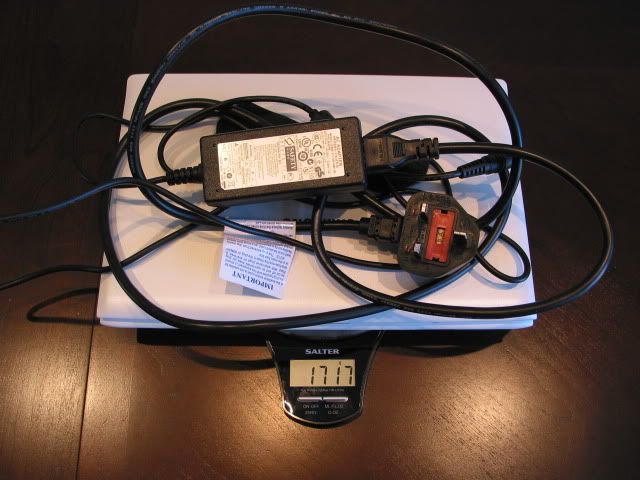
Taking the whole package into account i.e. netbook + battery + power cables comes to a total weight of 1.717kg (3.8lbs). The interesting point here is that the total package weight of the Asus Eee PC 1000HE came to around 1.75kg (3.9lbs). This shows that whilst the netbook weight of the Samsung N120 is significantly lighter than the 1000HE, when taking them both on the road with power supplies in tow, there is hardly any difference between the two. This is down to the very light AC adaptor used in the Eee PC 1000HE as opposed to the heavier one found in the N120.
Ports
There is no major omission when it comes to port selection on the Samsung N120. This includes three USB ports (two are chargeable) and a 3-in-1 memory card reader. Yes, an Expresscard/34 slot would have been nice, but it doesn’t appear on too many netbooks anyway.
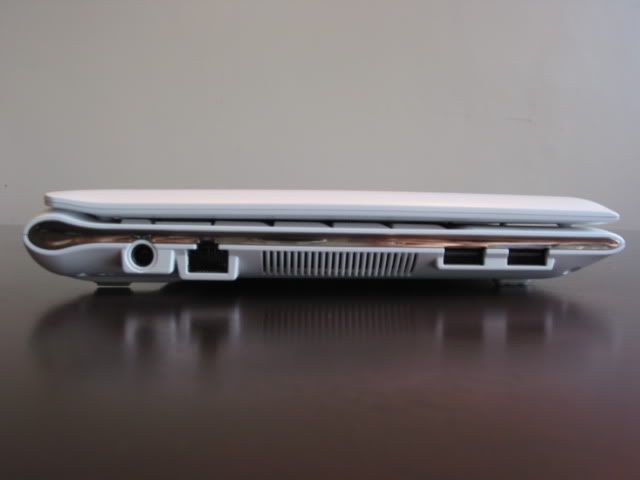
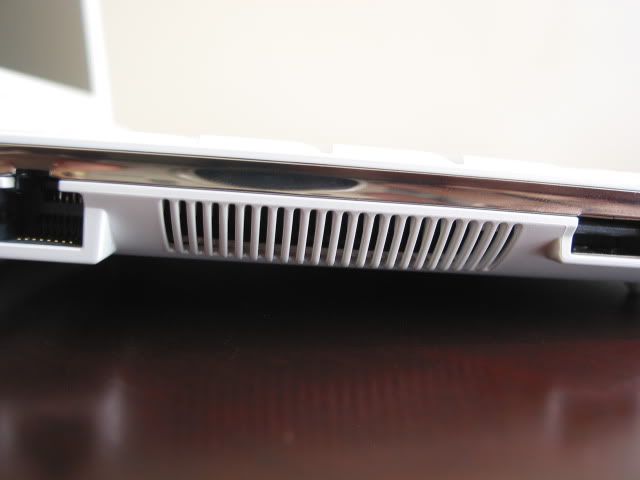
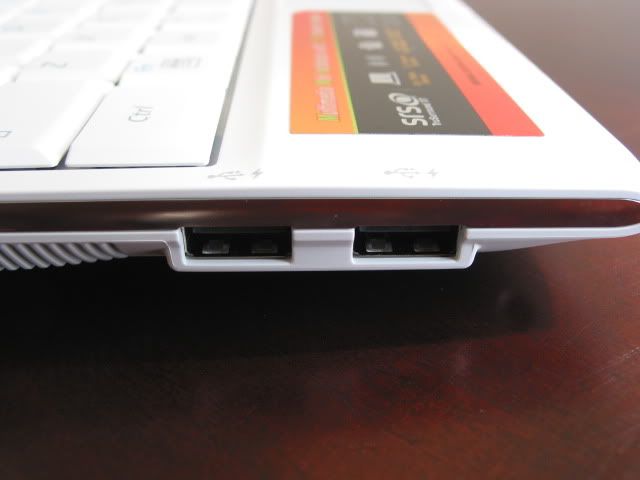
On the left hand side of the Samsung N120 you’ll find the power input, Ethernet port, fan vent and two USB ports.
We like the way that Samsung places icons on the keyboard of what ports are underneath. After all, sticking cables/peripherals into the netbook is usually done from the top and is this makes the icons placement intuitive to use.
The power supply sits to the edge of the netbook, next to the wired Ethernet port. The RJ45 port is 10/100M bit only so no Gigabit support here.
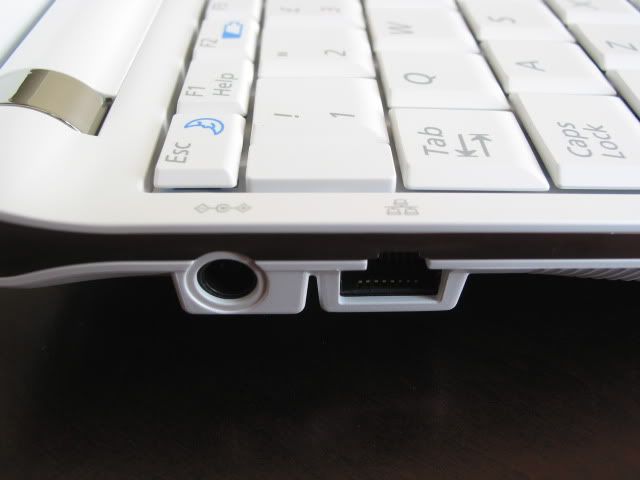
This is the main fan vent that you will find on the side of the N120 (the right side doesn’t have one). Whilst in use, even after long periods, the air blown out remained cool. Fan noise was also kept to a minimum but more on this later.
Next to the fan, you’ll find the two chargeable USB ports. Small USB devices can be charged even whilst the N120 is off, all you need to do is enable this setting in the bios.
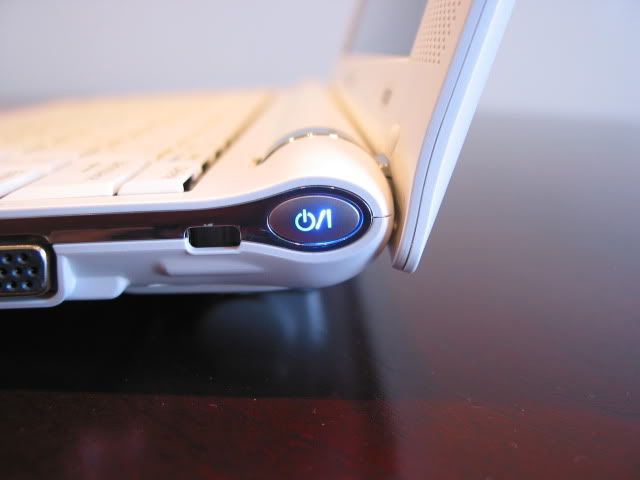
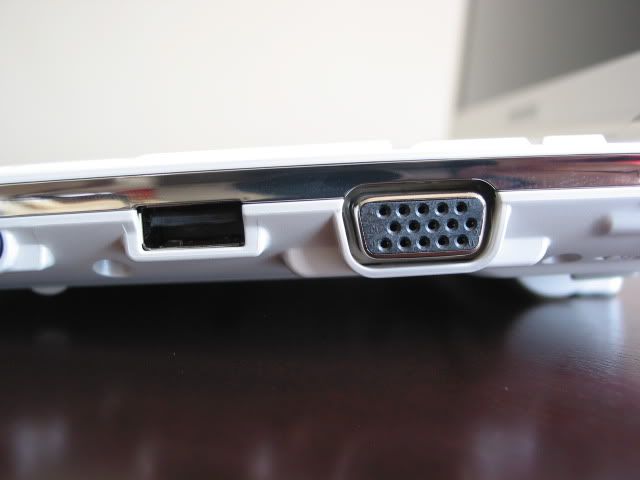
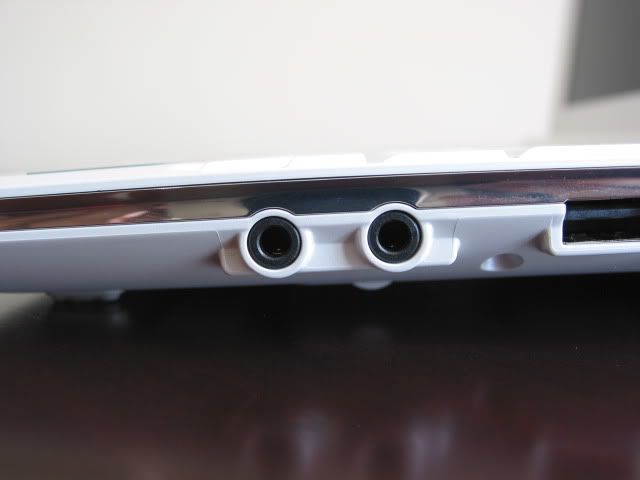
On the right hand side of the Samsung N120 you will find the power switch, Kensington lock, VGA port, the third USB port and a pair of audio jacks.
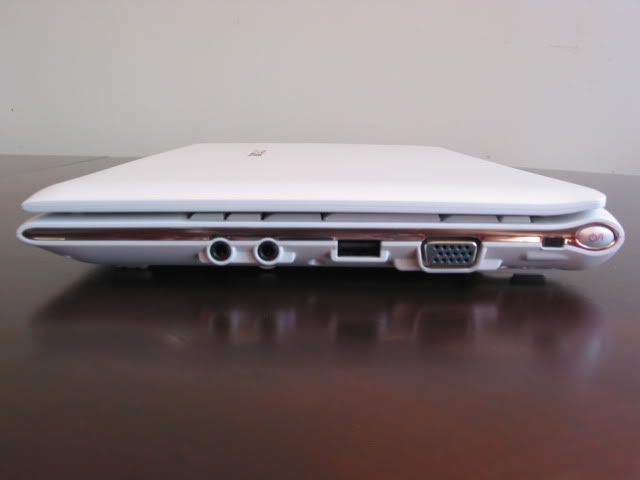
The power button found on the Samsung N120 is more discreet than the one found on the Samsung NC10. Whereas the NC10 has a round-shaped button, the N120 is oval in shape. The button didn’t have as good feedback as I would have liked. Often when I thought I had switched it on, it was still off, despite feeling a ‘click’ on depression. Next to the power button you can see the Kensington lock port, which enables you to secure the netbook to a fixed object.
The VGA port allows you to connect the N120 to any external monitor that supports the 15pin D-Sub interface. This sits next to the third USB (non-chargeable) port.
The headphone jack sits to the left with the microphone port adjacent to it. We feel that having the standard green and pink ports here respectively would have made things just that much clearer, rather than both ports being black in colour.
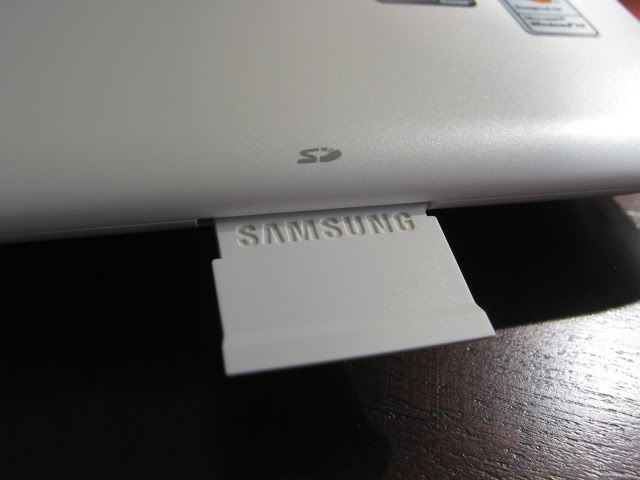
At the front of the N120, the 3-in-1 card reader can be found. This supports SD, SDHC and MMC memory cards. When a card was placed into the slot, it did stick out a bit, but not too much as to cause irritation.
Features
You will find a 1.3 megapixel webcam above the LCD. This is pretty much a standard feature in netbooks today, although you do still find the odd netbook with just a 0.3MP webcam. The performance is as good as you’ll find in any netbook right now. It presented clear pictures with a decent frame rate.
The Samsung N120 comes packaged with CyberLink YouCam webcam software. This utility is a bit of fun and allows you to apply fun effects to your webcam video.
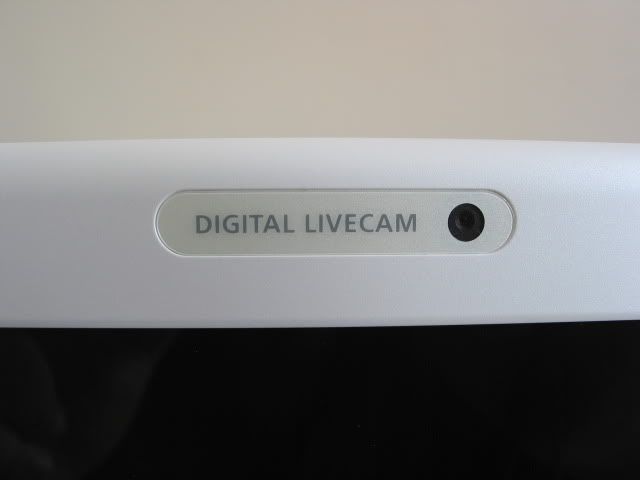
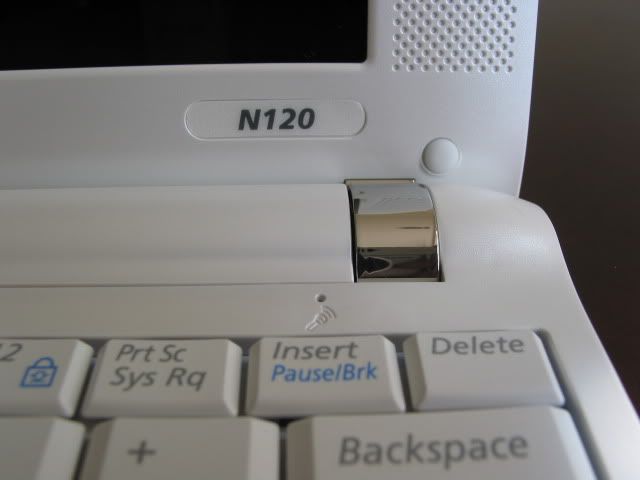
The same can’t be said for the sound quality. You’ll only find one mic on the Samsung N120 as opposed to the two found on the 1000HE. But that isn’t its biggest problem. Whereas the two mics found on the 1000HE were actually placed just underneath the display, the N120’s solitary mic is found just above the keyboard.
This means that if you are trying to type whilst using the webcam, the sound of you tapping away can overshadow the conversation. Even when not typing though, the sound is not as clear as the digital array mic seen on the Eee PC 1000HE.
Connectivity
The Samsung N120 comes with Wi-Fi (b/g) and Bluetooth 2.0 + EDR. It is a big shame that Samsung didn’t opt for Draft-N wireless support, especially since most new netbooks these days have it. Despite this we had no teething issues with wireless, unlike the ones we had with the Eee PC 1000HE. We were able to connect to the network straight away and even when booting from cold, the N120 was able to pick up a wireless signal very fast (and faster than the 1000HE could manage).
It’s also a shame that Samsung didn’t opt to include Bluetooth 2.1, which is meant to improve power efficiency of peripherals connected to it. We’d have liked to have seen integrated HSDPA, too, but this is a feature still rarely seen in netbooks, we can’t be too harsh on Samsung for this particular omission. As seen before the functionality appears to be there, so maybe Samsung plans future models with full 3G access.
The N120 has a dedicated status light to indicate whether Wi-Fi is on or off and this can easily be toggled through a shortcut Fn key on the keyboard. There’s no such button for Bluetooth, which has to be managed through the System Tray.
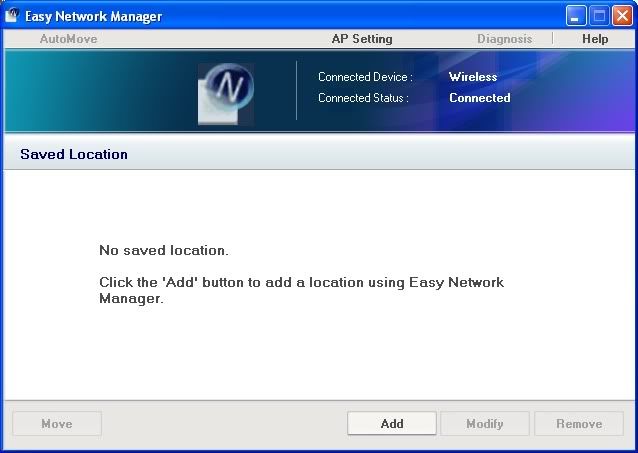
To manage your network settings on the move, Samsung provides a utility called the Easy Network manager. This allows you to configure your network settings for different locations so that you can access the network in a single click, rather than having to input the different settings again and again.
Keyboard
One of the key marketing points for the Samsung N120 is that it manages to pack in a full-size 12-inch keyboard into a netbook with 10.1-inch display. To get one misconception out of the way, despite all of the marketing talk, the N120 keyboard is actually 97 percent the size of a full-size keyboard. However, there is no doubt that this is one of the largest keyboards to grace a 10-inch netbook. The Samsung N120 fits a ‘full-size’ keyboard into its chassis, despite being only 11mm wider than the Samsung NC10.
The N120 uses a normal keyboard rather than the new type of chiclet keyboard found in some netbook models. Whilst we found the chiclet keyboard in the Asus Eee PC 1000HE comfortable to use, a certain amount of keyboard flex and ‘key rattle’ marred the overall experience. There are no such issues with the N120. Samsung has always used larger keyboards in its netbooks as seen in the NC10.However, the experience on the N120 is a step above.
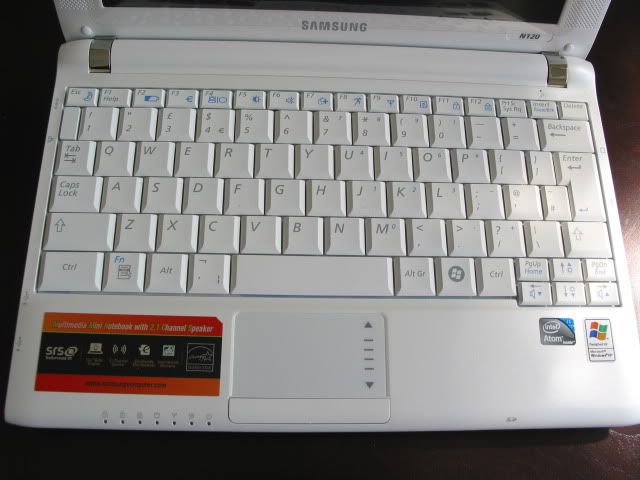
This is without doubt one of the best keyboards we’ve used on a netbook. All of the keys are in the right place, there are two large shift keys on either side of the keyboard. The right hand shift key sits under the ‘Enter’ key as it should. The space bar is a little small, but it doesn’t hinder typing.
A couple of (small) points broke the immersion though. The first is that the Windows key is on the right side of the space bar, which took some getting used to. The other is that the arrow keys felt a bit cramped. This meant that the assigned Fn keys were often mishit, the ‘Home’ and ‘End’ keys in particular kept tripping me up. However, it would be churlish to mark the keyboard down for this, given how solid an overall experience it provides.
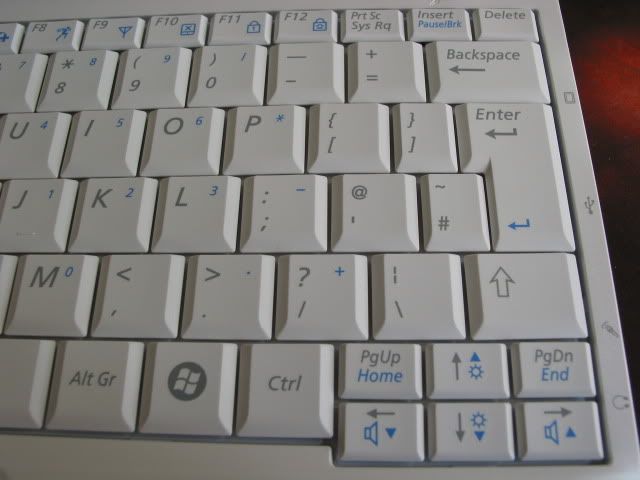
The width of the keyboard alone measures 259mm and the height measures 102mm.
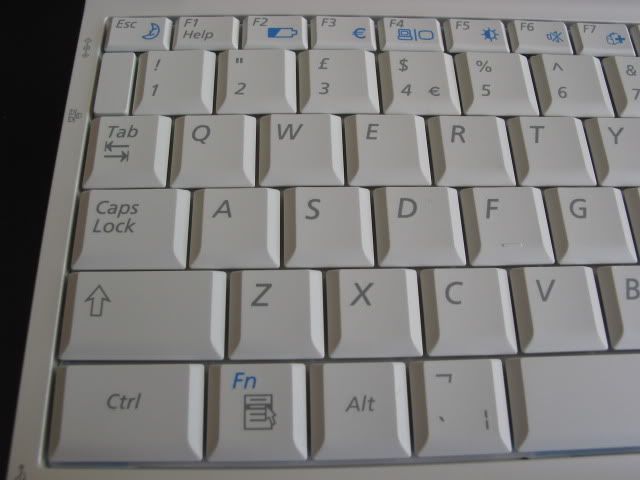
The space bar felt a little small, but it didn’t pose a problem when typing. As can be seen, each key is a substantial width to them that is unrivalled in any 10-inch netbook released to date. This makes it very comfortable to touch type.
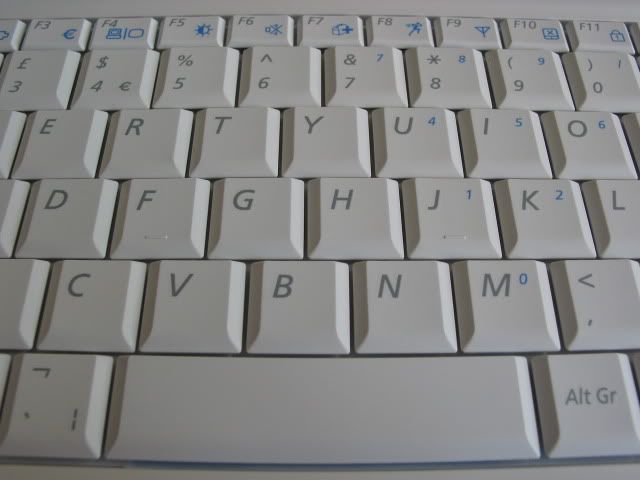
The keys measure 18mm in width and 17mm in height according to my measurements. There is also 18.5mm spacing (an extra mm over the Eee PC 1000HE) between the keys which means errors should be kept to a minimum.

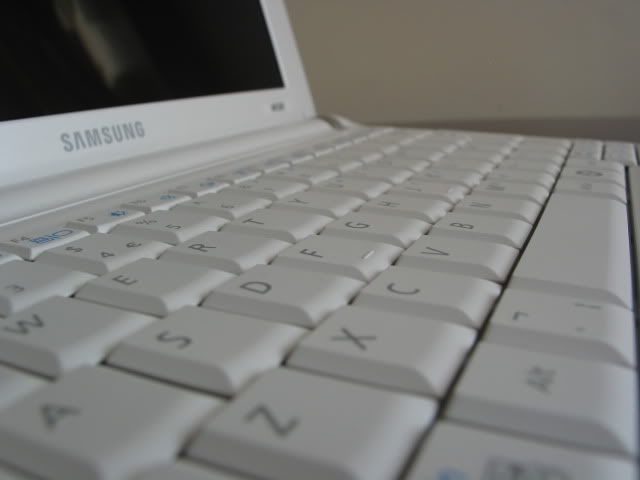
Each key has good tactile feedback, although if we are being picky, slightly more travel when pressing the key down would have made the experience better. Not that it spoils the experience mind.

One of the best compliments that I can give the keyboard is that when using it in full flow, I often didn’t think about the keyboard experience. When you are not worrying how cramped a keyboard is, or why the buttons are in the wrong places then you know you’re onto a winner. I was able to type nearly as fast as I can on a desktop keyboard with few errors.
Touchpad
Fitting in a full sized keyboard in the Samsung N120 has meant sacrifices to the touchpad. It was a little small for my liking, which meant several swipes to get from one part of the screen to the other. The touchpad has a width of 64mm and height of 35mm.
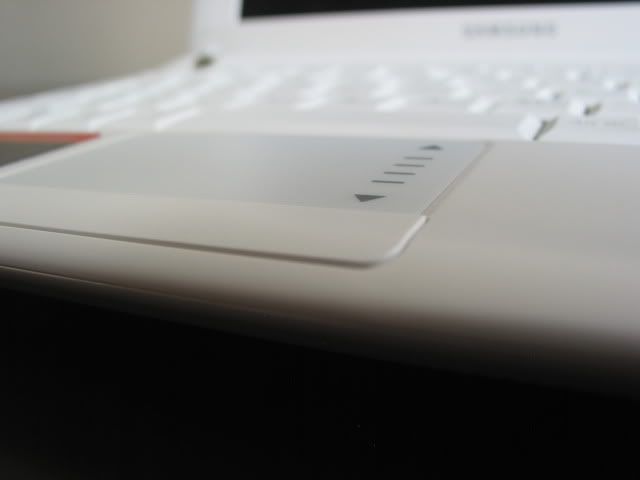
Apart from that, the Synaptics touchpad was responsive to the touch. The touchpad has a scroll area which is marked on the right hand side, allowing you to scroll up and down. This scrolling seemed to work well most of the time.
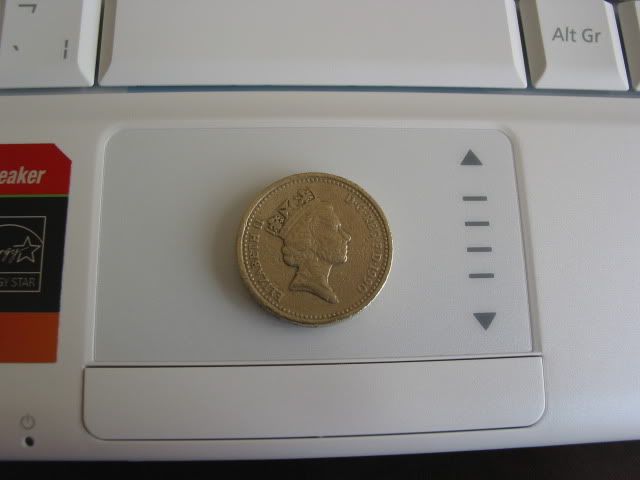
A number of gestures are also supported, but trying to get some of them to work was a bit hit-and-miss. In particular, I couldn’t get the Chiral scroll function to work very often. The annoying part is that whilst just browsing, this particular gesture was activated without my intention. Luckily, gestures can be disabled in the menu setting.
Multi-touch gestures are also supported, mainly to zoom in and out – there’s no two finger scrolling support though. I found the Synaptics touchpad to be more sensitive than the Elantech touchpad found in the Eee PC 1000HE. Zooming in and out was particularly easy and I always felt in control of my actions.
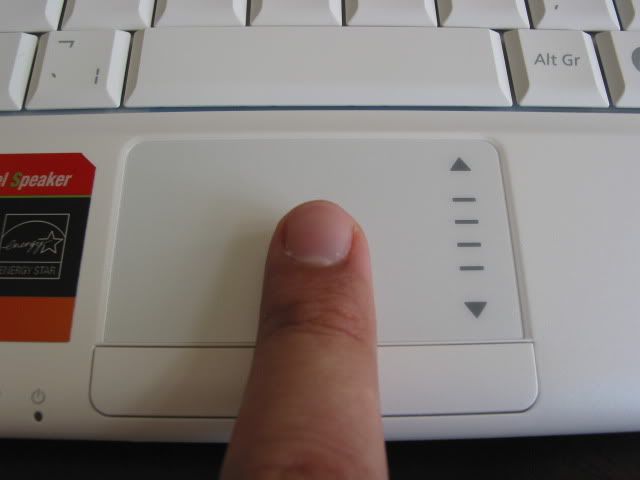
The single rocker button placed underneath the touchpad is slightly raised compared to the NC10. I found it comfortable to use, with the left and right buttons having just the right amount of tension to register commands. After the very stiff mouse buttons seen in the Eee PC 1000HE, this rocker bar was a joy to use.
Display
The Samsung N120 has a 10.1-inch LED backlit display with a resolution of 1024 x 600 pixels. The display does not sit flush with the chassis as seen in the Samsung N310 for example, and is surrounded by a large bezel.
Samsung has used a glossy display in the N120 as opposed to the matte screen used in the NC10. This may put off some people straight away and admittedly I’m not the biggest fans of glossy displays. Whilst indoors they may be fine, they can be a nightmare to use whilst on the road. Unfortunately the Samsung N120’s glossy display doesn’t do anything to dispel those fears. If you are using the netbook with a light source behind you it will be difficult to read the screen. Having said that, the glossy display is not as reflective as found in other manufacturers (particularly Acer).
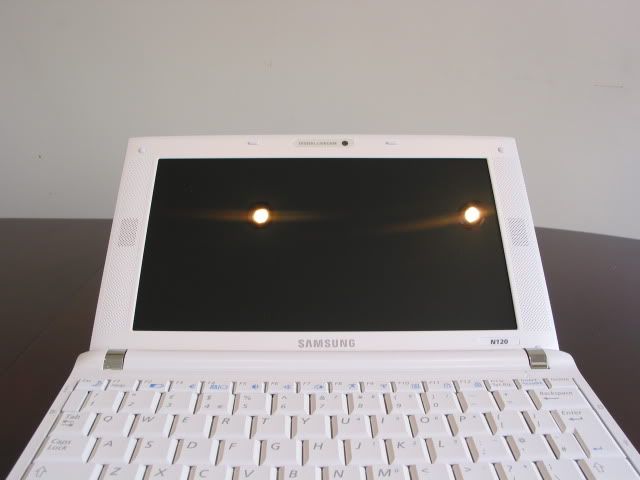
I’ve included a couple of examples below to show how reflective the screen is. In both cases the display was off. The example below shows the reflection from the screen indoors.
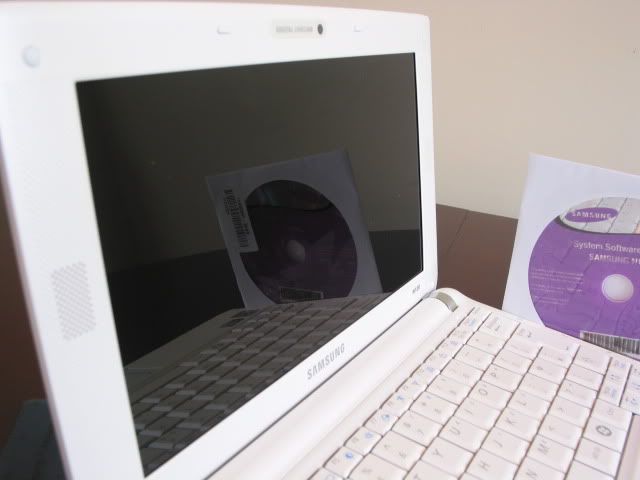
It was only when placed under direct sunlight, or bright lights say in front of a window, was the screen illegible. Whilst the reflective display isn’t as bad as others, it is still an inherent problem of this type of screen.
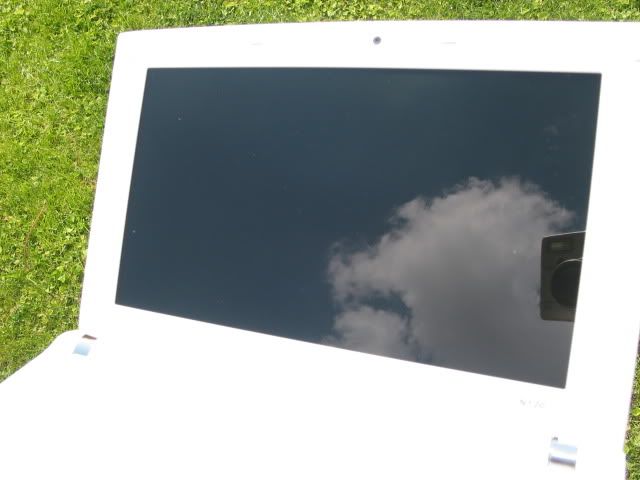
The display can go quite bright and the LED technology ensures an even picture from the backlight. Contrast was also very good, with some of the best blacks seen on a netbook. Additionally, colours were vibrant and text was crisp to read.
Watching movies was a treat on the display and I did not feel that the screen did not go bright enough. Viewing angles were also good, meaning that the user could easily share a movie with a passenger on either side. The reflective screen could provide a problem if there are bright lights at an angle though.
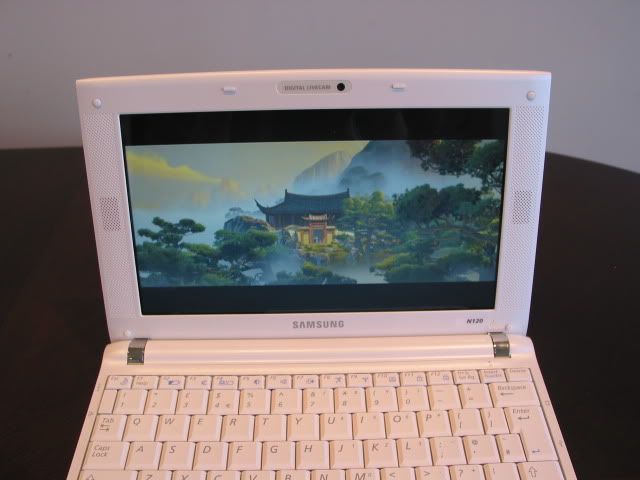
We would have loved to see the Samsung N120 support a high resolution screen at 1366 x 768 pixels. However, if you do want to scroll less, or need to use an application that needs the higher resolution, Samsung allows you to do this through the Easy Resolution Manager. This app allows you to easily switch between the native 1024 x 600 resolution and 1024 x 768 pixels.
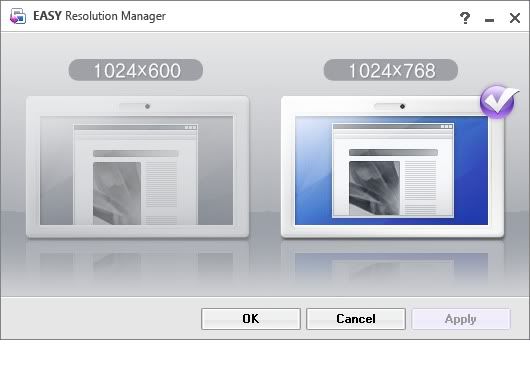
When using 1024 x 768 it does seem to squash everything you’re reading making text more difficult to read. We’ve attached a screen grab below which shows the extra space, but doesn’t do a good job of conveying just how much more difficult it is to read under this resolution.
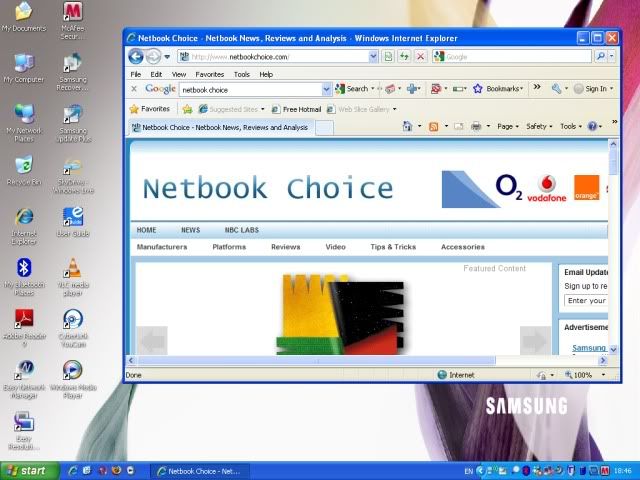
Speakers
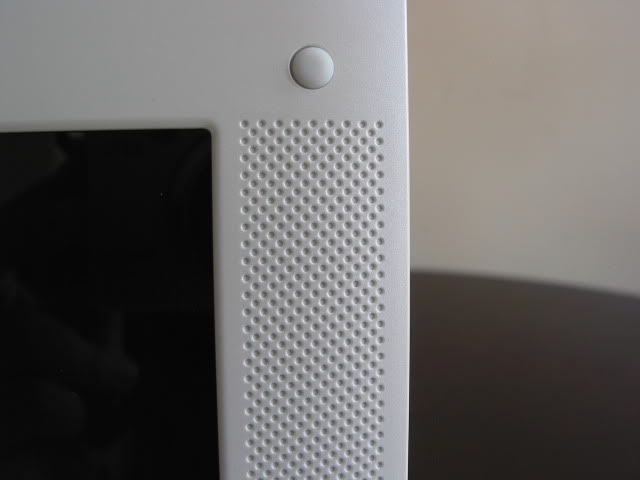
One of the biggest talking points of the N120 is that it is the first netbook to incorporate a 2.1 speaker system. Samsung has made good use of the large bezel that surrounds the display, by placing two front facing speakers on either side of the screen. This bezel is there as a result of the wider girth needed to house the larger keyboard.
For those that are interested in the N120 on the grounds of its sound system will not be disappointed. Whilst the two 1.5W speakers do not produce the loudest sound I’ve heard in a netbook (the Eee PC 1000HE is distinctly louder), they definitely produce the best imaging. Having the speakers placed on the display definitely makes a difference, most netbooks usually place the speakers on the bottom of the netbook.
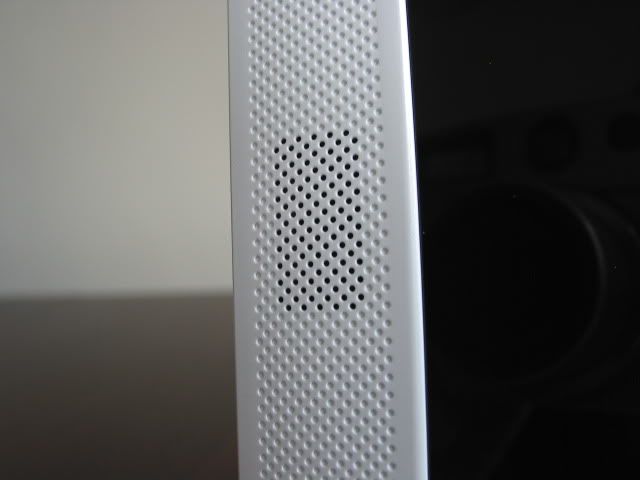
Samsung has used this perforated design to create the illusion of a speaker running the length of the display. Despite the dimples, there is no speaker behind here.
If the speaker placement was an inspired decision, then the subwoofer and SRS software are the icing on the cake. Regarding the subwoofer, do not expect any bass-thumping sounds. At the loudest volume, you can feel the netbook vibrate a little in your hands, however what the subwoofer does do is to expand the mid-range, which is so often lacking in netbooks. The subwoofer is located at the bottom left edge of the netbook as pictured below.
The SRS software also works really well. There are different settings that you can use for music or movies, where you can fine-tune the TruSurround, sound width, focus as well as bass levels. The difference between SRS being on and off is quite stark. Turning SRS off leaves music sounding very flat.
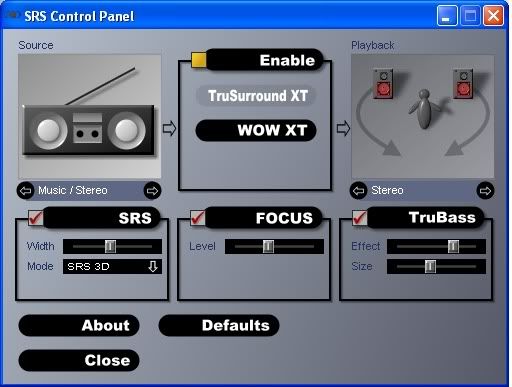
I need to caveat the points made above. Whilst the Samsung N120 is one of the best sounding netbooks we’ve heard, this is all relatively speaking. To most the sound will still sound quite weak when judged as a standalone sound source. However, compared to its peers, you probably won’t hear as good a sound as you do on the N120.
Heat & Noise
If the Samsung N120’s CPU is stressed for long periods, then I found the right palm rest area to get quite warm. I typically found this whilst running benchmarks or streaming YouTube videos for hours on end. It is not a problem that most people will have, although if you do stress the CPU utilisation to over 80 percent for long periods then expect it to get warm. But even then, it was never uncomfortable to use.
However, under normal use I was pleasantly surprised to see the Samsung N120 running cool. After long periods, cool air exhaled from the main vent. Even whilst watching movies, it stayed cool to the touch.
This cool performance meant that noise from the fans was kept to a minimum. I found it to be quieter than the Eee PC 1000HE, although it could still be heard in a quiet room. However, what really caused distraction came from an unlikely source, the hard drive. The hard drive used in the N120 is loud, whenever accessing or writing data I found its clicks to be quite distracting. The hard-disk drive used in the Samsung is the 2.5” 160GB SATA Fujitsu MHZ2160BH-G2. What I found strange is that looking at customer reviews on Newegg, most people said that it was quiet. Judging by this, maybe not all N120 netbooks will have a similarly loud HDD experience.
Performance
The Samsung N120 is powered by the most common chipset combination seen in netbooks today. It has a 1.6GHz N270 Intel Atom processor paired with the Intel 945GSE chipset. Graphics are served by Intel’s GMA (Graphics Media Accelerator) 950 chipset. It would have been nice to see the N120 come with the slightly faster 1.66GHz N280 Atom CPU or GMA 500 graphics chipset.
Whilst some may rightfully say that there is little real world difference between the N270 and N280 Atom processors, the tools that manufacturers provide also make a difference. For instance, Asus provides the ‘Super Hybrid Engine’ utility in its Eee PC netbooks which allow you to overclock (or underclock) the CPU depending on usage. This means that the 1.66GHz N280 CPU found in the Eee PC 1000HE can be overclocked to 1.75GHZ if you need the boost.
Unfortunately, Samsung provides no such utility. Yes, you can ‘flex’ the CPU speed within the Battery Manager from Minimum, Maximum or Auto. However, there is no overclocking or underclocking done here, all that these settings do is to change the multiplier used for the CPU. So on the Minimum setting, the multiplier will stay at 6x (c800MHz), whilst on the Maximum setting, the multiplier will stick at 12x (1,600MHz). This means that if you need the boost, the Asus 1000HE at 1.75GHz should, in theory, be over 9 percent faster than the Samsung N120.

I found the Samsung N120 to be perfectly acceptable for light multi-tasking which included browsing, streaming music as well as using Office documents. You won’t have any problems running a few applications at a time, although this does depend on which applications you use. Using more CPU-efficient applications, as highlighted in a recent feature, should enable you to make the most of the netbook experience. Using the Opera browser, for example, I had no problem in opening over 10 windows without causing the N120 to slow.
Video
Streaming videos on YouTube was no problem, whether in the browser window or in full-screen mode. CPU utilisation crept to over 80 percent, but the video played clearly and smoothly. Trying to watch HD videos on YouTube was a different kettle of fish, none of the videos I tried worked and were a bit behind the capabilities of the N120. HD videos on Vimeo were much better, but I did notice some skipped frames, something I didn’t notice on the 1000HE.
Playing standard-definition videos from the hard drive, in the AVI file format, was a smooth experience. CPU utilisation averaged 25 percent when using the Videolan utility app. There were no hiccups in performance even in the very busy scenes. In terms of HD 720p video, I had much more success in playing a range of different HD trailers than was the case with the Asus 1000HE.All files were played through Vlan, rather than Quicktime or Windows Media Player. There were some frames dropped, but only very few and not enough that spoiled the experience.
Benchmarks
We ran a number of different benchmarks similar to the one used for the Asus Eee PC 1000HE. We have also used a few new benchmarks to round off the overall picture. This includes lightweight applications to test some relatively typical uses for netbooks in the form of the Futuremark Peacekeeper and Powerbench Powerflasher browser benchmarks.
It is worth noting, that in some of the benchmarks below, we have included the results recorded by the Asus Eee PC 1000HE as a point of comparison. The 1000HE was benched in the High Performance Mode and not the overclocked Super Performance Mode. The Samsung N120 was benched on the Auto CPU speed setting. All benchmark tests were undertaken in battery mode.
Boot time
The Samsung N120 was reasonably quick to boot up, taking just 34 seconds to reach the Start menu. Shutting down took longer at 54 seconds. Both of these were average times taken across three attempts. It didn’t have the fastest boot time seen, but was respectable nonetheless.
PCMark05
We spent quite a few hours to try to get a result in PCMark05, but for some it just wouldn’t work for us. For our last review, it took a similar amount of time to get a result. Whilst we did end up getting a result last time round, we feel that the time invested is just not worth it. Therefore, we have decided to drop PCMark05 from our future benchmark tests.
GeekBench
Geekbench provides a number of different benchmarks to accurately measure processor and memory performance. The Samsung N120 produced a score of 877 against the 913 scored by the Asus 1000HE.

3DMark03
It feels slightly pointless running 3DMark tests for netbooks, given how far behind they are compared to low-end desktops. Regardless, we recorded the results across the 3DMark03 and 3DMark06 benchmarks. In 3DMark03, the Samsung N120 scored 734 3DMarks, slightly behind the 1000HE at 780 3DMarks.

3DMark06
In 3DMark06, the Samsung N120 managed 87 3DMarks, once again just marginally behind the 1000HE which scored 93 3DMarks.

Super Pi
Using Super Pi to calculate Pi to 1 million digits took the Samsung n120 93 seconds, 5 seconds slower than the Asus Eee PC 1000HE.

For those that may be interested, we ran Super Pi across all digits and we have included the results below.

wPrime
The wPrime test threw a spanner in the works compared to the results seen so far. Under the 32M setting, the Samsung N120 took 124 seconds to complete. This is 21 seconds faster than it took the 1000HE to complete.
I don’t really understand why this would be the case, however the N120 also bettered the 1000HE on the 1024M setting. On this setting, the N120 took 3,968 seconds compared to 5,776 seconds for the 1000HE. That is a difference of over 30 minutes in the N120’s favour.

7-Zip
7-Zip is a free compression tool and genuine alternative to WinRAR. Decompressing a large file is one of those places where a slower CPU can leave you waiting for a few seconds, so we thought it would be a fitting application to test. Using the internal benchmark this measures compression and decompression performance in MIPS and provides an average result.
It is multi-threaded so takes advantage of the latest multi-core enabled CPUs. The N270 Atom CPU supports Hyper-Threading Technology, allowing the operating system to run two threads on one core. We therefore ran the benchmark using two CPU threads. We left the benchmark to accumulate at least 10 runs using a 32MB and 64MB Dictionary size in order to get a solid, average result.
In the 32MB test it scored 1295 MIPS whilst in the 64MB mode it scored 1265 MIPS. We will look to see how this compares to other netbooks in future reviews.
Peacekeeper
FutureMark’s Peacekeeper is a benchmark that uses JavaScript to measure browser performance during web rendering. Given that one of the main tasks on netbooks is surfing the net, we thought it we would be an apt benchmark to start tracking. However, as you would expect, the performance can differ greatly depending on which browser is used.
For this test, we ran it across Internet Explorer 8 (8.0.6001.18702), Firefox (3.0.10) and Opera (9.64). As can be seen below, Opera gave the best performance, followed by Firefox. IE8 was a distinct third.

PowerBench Powerflasher
Powerbench Powerflasher measures the performance of applications designed in Adobe Flash 10. As with the Peacekeeper benchmark, we tested it across three different browsers as stated above. This time around Firefox took the marginal lead from Opera, whilst IE8 remained bottom.

CrystalMark
CrystalMark is a benchmarking utility for testing your computer performance by running various benchmark tests. CrystalMark lets you test your CPU, memory, HDD and Video (GDI, Direct Draw, OpenGL). The overall score of 28,369 was slightly lower than the 1000HE which scored 30,146.

CrystalDiskMark
CrystalDiskMark evaluates the performance of your hard drives based on two tests – a sequential read/write test and a random read/write test. You can select the drive to test, the number of test and the size of the data to test which can be 50MB, 100MB, 500MB and 1000MB.
The results displayed below have been conducted using 5 rounds of the 100MB test. The read/write speeds were found to be slightly lower than the HDD found in the Asus 1000HE.

HD Tune
HD Tune is a hard disk utility that can measure the raw performance of your drive, including transfer rate, burst rate and access time. The average transfer rate was 51.0 MB/sec whilst access time was 17.5ms.

Battery Life
The Samsung N120 netbook comes with a 6 cell lithium ion battery. Whilst most of the marketing literature suggests a claimed battery life of 10.5 hours, looking at the N120 listing on the Samsung site talks of a battery life of “up to 7.5 hours”. Samsung says that this latter claim is based on a Battery Eater test. Either way, we were eager to do our own tests to find out just how long it lasted.

The 6-cell Li-ion battery is rated at 66Whr (5900mAh). This compares to the 5200mAh battery found in the Samsung NC10.

If you are one of those people that run your netbook mostly through the power supply, then Samsung has introduced the ‘Battery Life Extender Mode’. When enabled, this will only charge the battery up to 80 percent, the idea being that it will reduce the battery ageing process and prolong overall battery life.
The main app to manage the battery settings comes in the form of the ‘Battery Manager’. Through this utility you can select the brightness levels when used on battery or AC power. You can also select LCD dimming time modes as well as CPU speed.

Battery Manager is also used to determine when the monitor and hard disks should be turned off, along with determining system standby and hibernation sleep modes.

Battery life is one of the most critical considerations to make when choosing a netbook. As with our review of the Eee PC 1000HE, we avoid using synthetic battery tests to determine battery life. Apps, such as Battery Eater, are designed to determine the extreme points of battery performance and we just feel that they are not representative of what the netbook will be used for. We also feel that they are of limited use to our readers, who want real-world examples of what the netbook is capable of.
As with our previous Asus 1000HE review, we ran a number of different scenario tests to determine what kind of battery life to expect from the Samsung N120. To ensure consistency, the settings that we used were as close as possible to the ones used for the 1000HE review.
Airplane scenario: We replicate an environment where one may want to watch video throughout an airplane journey. For this test we turned off both Wi-Fi, Bluetooth and the webcam. Screen brightness was set to 62.5 percent (given the dark environment) and audio was set to 50 percent. We also plugged in a pair of headphones (noise cancelling Sennheiser PXC 250’s) to make the test as authentic as possible. We then looped an AVI video file continuously on full screen until the battery died.
Result: In this scenario, we found that the battery lasted for 6 hours and 4 minutes. CPU utilisation was between 20 to 25 percent on average whilst the video file was played from the hard drive. This was exactly 30 minutes less than the Asus 1000HE managed. However, brightness on the Asus was at 60 percent compared to 62.5 percent in the Samsung. This was mainly due to the gradations between display levels.
Business scenario: For this test, we simulated the likely setting one would use if using the netbook on the move for business. We had Wi-Fi, Bluetooth and the webcam all switched on. The screen was set to 50 percent brightness and audio at 50 percent. To make sure the Wi-Fi was being used, we also opened the Opera browser and set a couple of web pages to refresh every 30 seconds.
Result: Under this scenario, the battery lasted for 5 hours and 37 minutes. On average, CPU usage was less than 10 percent. This time was significantly lower than that achieved on the Asus Eee PC 1000HE (7 hours and 24 minutes).
Coffee Shop scenario: Here we replicated an environment where you might surf the net or watch YouTube whilst having a coffee. For this test we turned on Wi-Fi (and left Bluetooth and webcam off). Screen brightness was 100 percent whilst audio was at 50 percent. We streamed a YouTube video on an endless loop until the battery died.
Result: As you can imagine, this particular test really stressed the CPU. On average CPU usage was between 80-85 percent. It is no surprise to therefore see that the battery lasted the shortest time under this test at 4 hours and 55 minutes. A decent result considering that this was only 14 minutes less than the Asus 1000HE.
Jukebox scenario: We were eager to see how well the Samsung N120 would fare in the jukebox test given its 2.1 sound system. This particular test involved streaming music over a wireless network. Audio was set to 75 percent, whilst brightness was set to 25 percent. Wi-Fi was switched on, but Bluetooth and the webcam were switched off. An album was looped until the battery died.
Result: The Samsung N120 lasted for 5 hours and 37 minutes under this particular test. CPU usage varied between 15 and 25 percent on average. This result was significantly lower than seen on the 1000HE (8 hours and 44 minutes). I imagine that both the subwoofer and SRS audio combined to drain the battery faster than was seen in the 1000HE. Also, due to the way the display gradation settings work, the N120 was set to 25 percent brightness compared to 20 percent brightness on the 1000HE. So that would also have had an effect. Despite this, I still expected it to last a little longer than it did.
Benchmarking scenario: As in our previous review, we are sharing the battery life performance whilst conducting the benchmark tests for the N120. The settings we used for this were Wi-Fi on and Bluetooth and webcam switched off. The display was set to 100 percent brightness and no audio was used. A small USB mouse was also connected.
Result: Given the nature of benchmarking, the CPU would have been stressed to the limit during certain points. The Samsung N120 lasted for 6 hours and 37 minutes under this scenario, a good 35 minutes better than the 1000HE.
Summary
Taking these results on their own, highlight just how good the N120 battery is. To be able to watch three films back-to-back as suggested by the Airplane scenario is a superb result, as is getting 5 hours of battery life whilst seeing the CPU stressed quite heavily in the Coffee Shop scenario.
We ran another non-official test when just using the netbook around the house at various points. For this test we had Wi-Fi on, but switched off Bluetooth and the webcam. The display brightness was set to 75 percent. We managed 8 hours and 32 minutes which is very good. Okay, it’s not as good as the 10.5 hours suggested by Samsung, but there’s no reason why you won’t be able to squeeze between 7 to 8 hours out of it under normal use.
Looking at how the N120 compared to the Asus Eee PC 1000HE is quite interesting. For some tests it was behind quite spectacularly (Business and Jukebox tests), whilst it was very close in others (Airplane and Coffee Shop tests). The N120 even managed a win in the Benchmarking test. I really can’t understand why the time scored in the Business test was so different to the 1000HE in what were similar conditions. At least, with the Jukebox test, you can say that the subwoofer and SRS audio may have had an impact. Regardless, if you view the Business test as an outlier, the other results weren’t too dissimilar, although the 1000HE definitely has the upper-hand when it comes to battery life.
Conclusion
The Samsung N120 puts two big ticks next to two of the most important features of a netbook, keyboard and battery life. The keyboard is the biggest you’ll find on a 10-inch netbook, but bigger doesn’t always mean better. Thankfully, Samsung has provided a keyboard with very good tactile feedback and large keys that mean errors should be kept to a minimum. A full-sized Enter key and two large Shift keys should also keep touch-typists happy. If I was being picky, then the space key could be a little bigger along with the arrow keys, but overall the keyboard provided a very solid typing experience and I’m sure this won’t be the last 97 percent keyboard to feature on a 10-inch netbook.
Battery life is also very good. Whilst you may not get close to the 10.5 hours of Samsung’s quoted battery life, 7-8 hours is likely under normal use with wireless switched on. Battery times fell short of that seen with the Asus Eee PC 1000HE, but there wasn’t that much in it. It is positive to see netbook manufacturers concentrating on battery life in newer models and the N120 is one of the best examples of this.
The good points don’t stop there, the Samsung N120 felt very solidly put together and I really liked the satin exterior. If it were up to me, all netbooks would come with this type of finish. It keeps the device looking great all the time and you don’t have to worry about fingerprint smudges. I’m also happy to report that the 2.1 sound system isn’t a gimmick. The front facing speakers combined with subwoofer provide an excellent sound stage for a netbook. Don’t expect the subwoofer to provide any bass, but it does pad out the mid-range. It is one of the best sounding netbooks which is only enhanced by the SRS software.
There are a few negative points though, the glossy display will annoy some people and Samsung could have made an easier job of providing access to the HDD, especially since upgrading the RAM has been made so easy through its dedicated access panel. I also found the HDD to be annoyingly loud.
The Samsung N120 manages to pack in a lot of tech into a chassis that is still reasonably slim and lightweight, considering the inclusion of a 6-cell battery. However, at the current time, the N120 is around £50 more expensive than the best-selling Asus Eee PC 1000HE. Despite being cheaper, the 1000HE offers a faster processor, draft-N wireless, better battery life, a matte display and easier access to both the HDD and RAM. On the flip side, the 1000HE is not as sleek and light as the N120 and nor does it have as good a keyboard in our view.
Whichever way you look at it, the Samsung N120 is one of the best netbooks on the market today, despite not presenting the best value for money. Only you can decide whether the typing experience, sound system and less bulk justifies the premium over the Asus Eee PC 1000HE.


May 18th, 2009 1:19 PM
Feedback so far suggests that people are liking the larger N120 keyboard. Well played Samsung.
May 19th, 2009 8:33 PM
i would like a larger keyboard, but with a larger screen too.
something like 11,6″ oder so – i think it would fit in the n120 case
is this one a review smapleor have you bought it ? in Germany they sell the N110 only with the 58 Wh // 5.2 Ah battery, but the reviewers get the 64 Wh // 5.9Ah one.
good review
May 19th, 2009 9:15 PM
We tested a final retail version, as you would find in the shops here in the UK. As far as I know all Samsung N120 netbooks come with the 5900mAh 6-cell battery.
May 20th, 2009 11:29 AM
In my view, literally, the most important aspects in regard to netbooks are display quality and weight/size. Because I will use it for seeing informations not writing that much, that I will do either at the office or home desktop. And unfortunately, the bulk of newer and announced netbooks is worse than before: the unending trend for glossy displays kills the usability at least for me. (plus that so few are available with built in 3G/UMTS modems.)
May 20th, 2009 11:51 AM
No doubt, everyone has a different view as what are the most important netbook considerations. We should perhaps do a poll at some point to find out what comes out on top!
May 20th, 2009 9:45 PM
The U.S. version has a 5200mah battery. Interesting as the U.S. N110 is 5900mah while most N110’s in Europe are 5200mah..
May 20th, 2009 10:47 PM
I wasn’t aware of that, thanks for the clarification!
June 11th, 2009 6:25 AM
Sorry, but this is stupid.
If they’re going to make it this big, the display should be BIGGER. A 1024 x 600 display has you scrolling around constantly, especially vertically. If you have room for it, a 720p display at 11″ or so would be MUCH BETTER.
Sorry, but the size of a netbook matters. I take my 9″ netbook (too small) lots of places I would never take my 13″ laptop. Make it too big and its not a netbook anymore, at least to me. If you’re going to put a 10″ display in the thing, make it no bigger than necessary. You can find perfectly acceptable keyboards on 10″ netbooks (check out the HP 2140 for example), without resorting to this.
They didn’t “squeeze” the keyboard into anything. They just cranked the bezel up until the regular keyboard fit. Not for me.
June 25th, 2009 5:13 PM
It bears mentioning that the N120 also supports charging peripherals while in sleep mode through a BIOS setting. In addition, the internal wireless card can be changed for one that supports draft 802.11n (the Intel 5300 is your best bet).
June 25th, 2009 5:19 PM
We did mention that two of the USB ports are chargeable on page 4, something that most other reviews missed. Also, not many mentioned the fact that the N120 has a multi-touch touchpad.
September 8th, 2009 8:36 PM
I just ordered the samsung N120. I would like to play dvd movies on it. what do you suggest I do to accomplish this.
Thanks
ann
September 23rd, 2009 2:51 AM
Thank you for your review of N120, it’s mostly convinced me to buy one – my local university has a sale, it’s priced at USD $371, and its battery is 9-10 hours (regional Hong Kong variation I’ve been told).
September 23rd, 2009 2:52 AM
PS. No sales tax
January 24th, 2010 5:59 PM
I have one of these machines that i picked up for $299. I’m fighting the kids over who gets to use it. The battery seems to alst forever, it’s fully functional, and yes, the screen size is a bit small but for the price i’m happy to deal with it. The screen size is adequate to watch video, and there are only a few websites that require careful scrolling and panning. This is a great airplane worker – small enough for the tray table, big enough to get real work done.
I asked my office to buy two more for “floaters” that employees can grab on their way out the door for work trips.
in short, i love it.