


NbC: MSI Wind U135 Review
March 29, 2010 at 12:14 pm
Ports
The MSI Wind U135 comes with all the ports you would expect to find in a netbook. The right side of the netbook houses the VGA port, a pair of audio jacks, Ethernet, a single USB port and a card reader.

The Ethernet port sits at the back of the netbook, exactly where you’d hope to find it. The Ethernet slot is 10/100 LAN only, so no Gigabit support here. Next to this you’ll find the bright blue VGA (15pin D-Sub interface) port.

You’ll then find colour-coded audio jacks (green for headphones and pink for the mic), which was welcome.

Next to this sits the 4-in-1 card reader that reads SD/MMC/MS/MS Pro memory cards. Lastly, you’ll find a single USB port.

The left side of the U135 includes a Kensington lock, power input, fan vent and two USB slots.

At the very edge, you can see the Kensington lock which sits next to the power input socket.

You then have a the main side vent for the netbook (the right side doesn’t have one). The U135 was both quite and cool during operation. You also get a couple of obligatory USB ports. These are just normal USB ports and are non-chargeable as we saw with the Toshiba NB200 and Samsung N510/N120.

With a SD memory card fully inserted, we noticed that it did stick out a bit which may annoy some people.

Features
The MSI Wind U135 ships with an “ECO Power Saving Function”. This basically means that there are different battery modes suited for different usage scenarios. Under the different modes, brightness and settings are different. Personally I just turned Eco off as I like to set these functions manually.

The Wind U135 comes with Realtek HD Audio software allowing you to configure audio. Given the poor quality of the speakers, however, I found it made little difference.

Webcam
A 1.3MP webcam sits in the middle of the bezel on the top of the display. What I really like is the light indicator sitting next to it that shows you when the webcam is on/off. This avoids any potentially embarrassing situations and means you’ll never keep it on in error. The quality of the picture was as good as other 1.3MP webcams on competing netbooks.

The mic for the webcam is situated at the top-left of the bezel. We found audio quality to be good and liked that the fact that the mic was well away from the clattering of the keyboard.

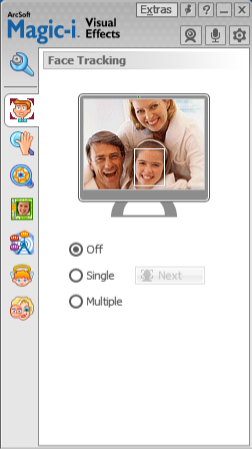
ArcSoft web software is included to make the most of your webcam experience. As with other webcam software you can also create a profile and use fun effects.

Connectivity
The MSI Wind U135 comes with the latest Bluetooth 2.1 + EDR standard, and you’ll even find the latest wireless draft-N standard. It’s nice to see the netbook using the latest wireless standards. We found the wireless performance to be perfectly adequate. We had no problems in connecting and picking up a signal was very quick.

May 9th, 2010 1:16 PM
I think it needs to be pointed out that the touchpad DOES in fact support multi-touch, scrolling, etc. You just need to grab the Sentelic Multi Touchpad driver from http://www.msi.com/index.php?func=nbdriver&maincat_no=135&prod_no=1973
May 26th, 2010 8:14 PM
Please include a close-up of the two MSI labels on the right underside. These labels show the wireless chipset used in the laptop. I would not touch the U135 if the chipset was Atheros ! too many problems with this chipset. Realtek is the best.
July 8th, 2010 2:43 PM
i have just bought one and the only thing i dnt know how to turn on is the bluetooth dse any one know how to
July 9th, 2010 10:15 PM
I am trying to find the user manual for my MSI wind U100. Not in the box and searched online to no avail. There are many things I do not know about my Netbook, so just do without!! I found a lot of manuals for the Asus Netbooks online, but shame on MSI/Proline for the lack of customer services.
My problem is — I do not know where to set the Webcam, it is not working, can anyone assist please. Thx E
August 3rd, 2010 2:43 PM
Hi,
I also don’t know how to make bluetooth work or my webcam…
can anyone tell me how?
August 4th, 2010 11:08 AM
My problem is — I do not know where to set the Webcam, it is not working, can anyone assist please. Thx E
For U100, Fn+F6 can turn on the webcam.
August 6th, 2010 7:01 PM
hi to turn the webcam on you need to press the fn button and the f6 button at the same time dose anyone know how to switch bluetooth on
October 19th, 2010 4:55 PM
Eli,
The english user manual for the Wind U100 can be found at the address below.
Copy and paste it into your browser.
Josh
http://download1.msi.com/files/downloads/mnu_exe/01_MS_N011+N811_v1.0_English.zip
January 6th, 2011 11:25 PM
hi, i was wondering if anyone could help because i got the netbook for christmas so i can stay in contact with family etc on skype but cant seem to figure out how to make the webcam work
January 17th, 2011 1:33 PM
Hi Guys,
I have bought the Wind U135 just today and the sales guy explained that the netbook doesnt have a built-in Bluetooth. You need to use a bluetooth plug-in/ device.
May 7th, 2011 11:00 AM
hiya i just bort the msi u135 netbook the webcam works an it sayss i have a built bluetooth i dont know ow ta switch it on it says to press fn +f11 togeva that only switches on the wireless can anyone tell me pleasee thanks
May 23rd, 2011 2:39 PM
Please can somebody advice me on how to turn my webcam on and is a built on webcam U135 laptop. it seem when i press the fn and f6 key it comes up but says error or bad signal so please advice